How to sync orders/customers with ERP/CRM via Admin API?
Quick Answer
You can sync Shopware orders and customers with an ERP or CRM by using the Shopware Admin API, webhooks, and an integration layer that maps Shopware data into your external system. Most stores either build a custom middleware service or use tools like iPaaS connectors for simpler workflows. The setup usually involves API credentials, entity mapping, event handling, retry logic, and queue processing. This page walks through the setup process developers actually use in production.
Before You Start
- ✦ Admin API access — you’ll need integration credentials with the correct scopes for orders, customers, and state transitions.
- ✦ ERP or CRM API documentation — field mapping breaks fast if the target system has strict validation rules.
- ✦ Queue or middleware layer — direct real-time syncing works for small stores, but larger catalogs usually need retries and buffering.
Create API credentials
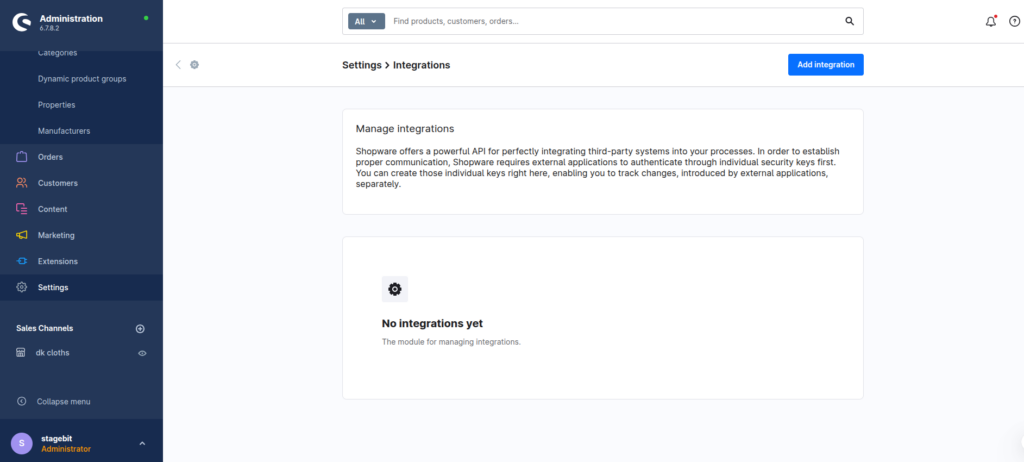
Start by creating a dedicated API integration for your ERP or CRM connection. Avoid reusing administrator accounts. Shopware generates an access key and secret that your middleware or integration service will use to authenticate against the Admin API. Keep the permissions narrow. Most integrations only need access to orders, customers, transactions, deliveries, and product references. If your ERP updates shipment states back into Shopware, include write permissions for order states as well.
- Create a dedicated integration user
- Limit permissions to required entities only
- Store credentials in a secure vault or environment file
Map Shopware entities
Before writing any sync logic, define exactly how Shopware fields map into your ERP or CRM structure. Orders are rarely a one-to-one match. Some ERPs separate billing and shipping entities. Others require external customer IDs before an order can import. Decide early how you’ll handle tax rules, currencies, payment states, guest checkouts, and custom fields. This is where most integration delays happen because nobody agreed on the data structure upfront.
- Map customer and address structures first
- Define status mappings between systems
- Document custom field transformations
Build webhook listeners
Webhooks let Shopware notify your middleware whenever an order or customer changes. This removes the need for constant polling against the API. Register listeners for events like order written, order state changed, customer created, and customer updated. Your middleware should receive the payload, validate it, and push it into a queue for processing. Avoid syncing directly inside the webhook handler because ERP APIs are usually slower than storefront traffic.
- Subscribe only to required entity events
- Validate webhook payload signatures
- Push payloads into a queue system
Process and sync data
Your middleware service should transform Shopware data into the structure expected by the ERP or CRM. This usually means converting addresses, tax rules, line items, currencies, and state values before sending the request. Add retry handling for failed API calls. ERP systems often have downtime windows or rate limits that storefront systems don’t expect. Queue-based processing prevents failed syncs from blocking checkout activity during traffic spikes.
- Transform payloads before external API calls
- Add retry logic with exponential backoff
- Log failed payloads separately for reprocessing
Handle reverse updates
Most integrations are not one-way for long. Eventually the ERP needs to update shipment tracking, invoice numbers, inventory, or payment states back into Shopware. Build reverse synchronization carefully to avoid loops where two systems keep updating each other repeatedly. The cleanest approach is storing external IDs and sync timestamps so your middleware can detect whether a change originated from Shopware or the ERP.
- Store external system identifiers locally
- Prevent duplicate update loops
- Sync shipment and payment states back to Shopware
Test with real workflows
Test full business flows instead of isolated API calls. Create guest orders, refunds, partial shipments, failed payments, and multi-currency orders. ERP integrations usually fail on edge cases rather than normal orders. Run tests using realistic volumes too. Some integrations work perfectly with ten orders but fail once queue workers process thousands during promotions or ERP maintenance windows.
- Test refunds and partial fulfillment flows
- Simulate ERP downtime scenarios
- Monitor queue processing under load
Shopware ERP/CRM Sync Checklist
0 of 8 completeMistakes Most Developers Make
! Syncing directly without queues
What happens: ERP latency slows down checkout-related processes and failed requests lose orders silently.
Fix: Push webhook events into queues and process them asynchronously with retries.
! Ignoring status mapping rules
What happens: Orders appear in the wrong financial or fulfillment state inside the ERP.
Fix: Define explicit state mappings before writing any synchronization logic.
! Missing reverse sync protection
What happens: Two systems continuously overwrite each other with duplicate updates.
Fix: Store sync origin flags, timestamps, and external IDs for every synced entity.
! Testing only happy paths
What happens: Refunds, partial shipments, or guest orders fail after launch even though initial tests passed.
Fix: Build test cases for real operational scenarios before production deployment.
Key Takeaway
The short version: syncing Shopware with an ERP or CRM works best when you treat it like an event-driven integration instead of a direct API bridge. Use dedicated Admin API credentials, map entities properly, process events through queues, and build retry handling from day one. Most problems come from missing state mappings, failed retry logic, or duplicate update loops once reverse syncing starts. Test operational edge cases before launch—not after customers place orders. Start with Step 2—that one alone handles most of it.
Related Answers

Still need help?
Talk to our Shopware experts
We've handled GDPR/CCPA compliance for dozens of EU & US Shopware stores.