How to offer local pickup and curbside delivery with rules?
Quick Answer
Shopware can handle local pickup and curbside delivery rules using shipping methods, Rule Builder conditions, and sales channel configuration. The key is separating pickup logic from normal shipping so rates, availability, and checkout messaging stay predictable. Below is the setup we use for stores with multiple locations, postcode restrictions, and time-based fulfilment rules.
Before You Start
- ✦ Store locations defined — you need clear pickup or delivery zones before creating rules.
- ✦ Shipping methods planned — pickup and curbside should use separate methods from standard courier shipping.
- ✦ Rule Builder access — most location logic depends on Rule Builder conditions and priorities.
Create dedicated shipping methods
Start by creating separate shipping methods for local pickup and curbside delivery. Do not reuse your normal delivery method and try to hide rates conditionally later. That setup becomes hard to maintain once you add multiple locations or postcode restrictions. Create one method for in-store pickup and another for curbside if the operational flow is different.
- Create a “Local Pickup” shipping method
- Create a separate “Curbside Delivery” method
- Set clear customer-facing labels and descriptions
Build availability rules
Rule Builder controls when customers can see pickup or curbside options. This is where most stores either keep the setup clean or make it impossible to debug later. Create reusable rules based on postcodes, countries, cart totals, or product tags. For example, you can show curbside delivery only within specific ZIP ranges or block pickup for oversized products.
- Create postcode-based delivery rules
- Restrict methods by product or category
- Separate pickup eligibility from delivery eligibility
Assign rules to methods
Once your rules exist, connect them to the correct shipping methods. This determines whether customers see pickup or curbside during checkout. Keep the logic narrow and predictable. If a rule applies too broadly, customers outside the intended area may still see the option and fail during fulfilment.
- Select the shipping method
- Attach the correct availability rule
- Test with multiple customer addresses
Configure pricing and timing
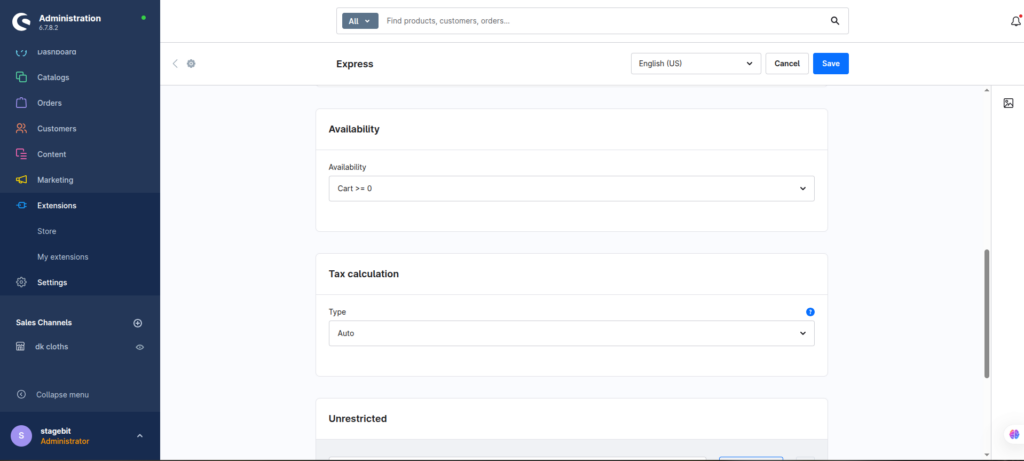
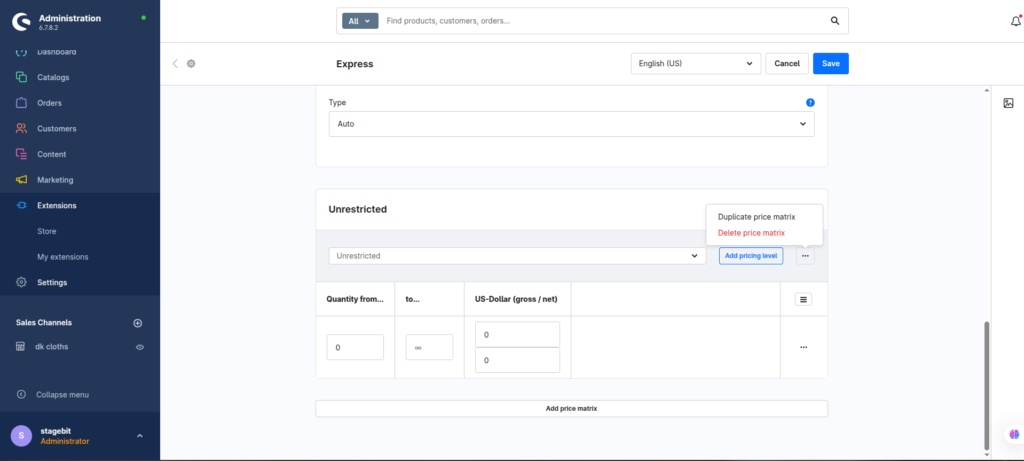
Pickup is usually free, but curbside delivery often needs distance or order-value logic. Configure separate pricing rules instead of forcing one flat rate for every order. You should also define expected collection or delivery timing clearly so customers know when the order will be ready.
- Set free pickup pricing if needed
- Create tiered curbside delivery rates
- Add fulfilment timing to checkout messaging
Test the checkout flow
Before going live, run checkout tests using different addresses, cart combinations, and customer groups. This catches most rule conflicts early. We usually see issues when one shipping method accidentally overrides another or when guest checkout behaves differently from logged-in users.
- Test eligible and ineligible postcodes
- Check mobile checkout behaviour
- Verify order confirmation messaging
Shopware Pickup & Delivery Checklist
0 of 6 completeMistakes Most Developers Make
! Combining all rules together
What happens: One failed condition can hide every local fulfilment option at checkout.
Fix: Split rules by shipping method and keep each rule focused on one purpose.
! Ignoring postcode edge cases
What happens: Customers outside the service zone still see local delivery options.
Fix: Test overlapping ZIP ranges and invalid postcodes before launch.
! Reusing courier shipping methods
What happens: Shipping logic becomes hard to debug once promotions and customer groups are added.
Fix: Keep local fulfilment methods separate from standard shipping from day one.
Key Takeaway
The short version: Shopware handles local pickup and curbside delivery best when you separate fulfilment methods and control visibility with Rule Builder. Most checkout issues come from messy rules, overlapping postcode logic, or trying to reuse standard courier shipping methods. Build reusable rules, test multiple address combinations, and keep pricing logic isolated per method. Start with Step 2—that one alone handles most of it.
Related Answers

Still need help?
Talk to our Shopware experts
We've handled GDPR/CCPA compliance for dozens of EU & US Shopware stores.