How to integrate shoppable video or 3D/AR product viewers?
Quick Answer
You can integrate shoppable videos, 3D product viewers, and AR experiences into Shopware using either app-based integrations or custom storefront components. Most stores use a combination of external media platforms, CMS blocks, and product media extensions to embed interactive content directly on PDPs and landing pages. The setup itself is not difficult—but performance, mobile behaviour, CDN delivery, and variant mapping are where most projects go wrong. This guide walks through the setup process, storefront integration patterns, and the mistakes teams usually discover too late.
Before You Start
- ✦ A Shopware 6 storefront theme — you’ll need access to Twig templates or CMS layouts for proper placement.
- ✦ Optimised media assets — uncompressed GLB/USDZ files and large videos destroy mobile performance fast.
- ✦ A CDN-enabled setup — interactive media should never load directly from your app server.
Choose the right media stack
Start by deciding whether you want app-based embeds or a custom storefront implementation. For most stores, shoppable video platforms handle analytics, hotspots, and streaming better than building everything yourself. But 3D and AR viewers often need deeper theme integration because variant switching, gallery behaviour, and mobile gestures vary heavily between storefronts. If your product catalogue has configurable products, map that logic first before touching the frontend.
- Select a video or 3D provider that supports Shopware embedding
- Define whether media appears on PDPs, PLPs, or CMS landing pages
- Match media assets to specific product variants or SKUs
Prepare media assets
Your assets matter more than the integration itself. Large 3D models and autoplay videos destroy Core Web Vitals if they are exported badly. GLB usually works best for browser rendering, while USDZ is still needed for Apple AR support. Compress textures aggressively and keep polygon counts realistic. Most product viewers look identical above a certain quality threshold anyway.
- Export 3D assets in GLB format for browser compatibility
- Create mobile-friendly video versions with adaptive streaming
- Host media on a CDN instead of local Shopware storage
Create custom CMS blocks
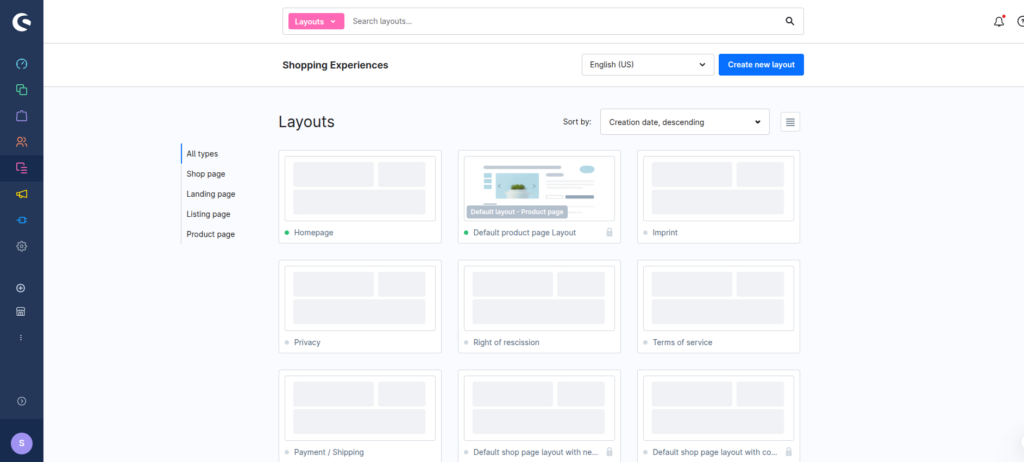
Most projects work better when interactive media is managed through CMS blocks instead of hardcoded theme templates. This gives your merchandising team control without needing deployments every time they change a campaign video. For product pages, create reusable blocks that accept video IDs, hotspot mappings, or 3D model URLs through custom fields.
- Create a custom CMS element for videos or AR embeds
- Pass media URLs through Shopware custom fields
- Enable fallback images for unsupported browsers
Embed storefront viewers
The storefront integration layer is where most debugging happens. Product galleries, zoom modules, and third-party theme scripts often conflict with WebGL viewers or embedded players. Lazy-load interactive assets after the main PDP content renders. And never initialise AR or 3D libraries globally across the storefront unless every page actually needs them.
- Inject viewers through Twig blocks or CMS slots
- Load heavy scripts asynchronously after page render
- Test interaction behaviour on Safari and iOS devices
{% block component_product_video %}


{% endblock %}Connect products to hotspots
Shoppable video only works when the buying path feels instant. Your hotspots should open variant selectors, mini carts, or quick-view modals without forcing a full page reload. The same rule applies to AR viewers. If customers leave the experience to find the product manually, conversion drops hard.
- Map hotspots directly to Shopware product IDs
- Enable add-to-cart actions inside overlays or drawers
- Track interaction events through GA4 or server-side analytics
Validate performance and fallback behaviour
Before launch, test the storefront on real mobile devices and slower connections. Desktop previews hide most rendering issues. AR and 3D viewers fail differently across Android Chrome, Safari, and embedded social browsers. Your storefront should always degrade gracefully back to static imagery if interactive content cannot initialise properly.
- Run Lighthouse audits on PDPs with active media
- Test fallback images when WebGL is disabled
- Validate mobile interaction and cart behaviour end to end
Shopware Interactive Media Checklist
0 of 8 completeMistakes Most Developers Make
! Loading viewers immediately
What happens: Your PDP becomes sluggish before customers even interact with the media.
Fix: Lazy-load scripts and initialise viewers only after the main content renders.
! Ignoring Safari behaviour
What happens: AR launches fail or gesture interactions break for iPhone users.
Fix: Test on physical iOS devices early instead of relying on browser emulators.
! Forgetting fallback content
What happens: Customers see blank product areas when interactive rendering fails.
Fix: Always provide static product imagery as a fallback state.
! Treating engagement as success
What happens: Teams celebrate high interaction numbers while conversions stay flat.
Fix: Measure add-to-cart and checkout lift instead of views alone.
Key Takeaway
The short version: integrating shoppable video and 3D or AR experiences into Shopware is mostly a storefront architecture problem, not a plugin installation problem. The media itself must be lightweight, lazy-loaded, and tied directly to the buying flow or it becomes expensive visual decoration. Most issues happen around mobile rendering, Safari behaviour, and poor analytics tracking. Use CMS-driven media blocks so content teams can manage campaigns without developer deployments. Start with Step 1—that one alone handles most of it.
Related Answers

Still need help?
Talk to our Shopware experts
We've handled GDPR/CCPA compliance for dozens of EU & US Shopware stores.