How to export data for BI tools (Looker, Power BI) from Shopware 6?
Quick Answer
You can export Shopware 6 data into BI tools like Power BI, Looker, and BigQuery using the API, database replication, scheduled CSV exports, or middleware connectors. Most growing stores eventually move to direct database syncing or ELT pipelines because manual exports break once order volume increases. The setup below covers the safest structure for reporting, dashboards, and long-term analytics.
Before You Start
- ✦ API access credentials — needed if you’re pulling data through the Shopware Admin API
- ✦ Database access or replica — direct reporting on production databases is risky for busy stores
- ✦ Defined reporting goals — knowing which KPIs matter changes how you structure exports
Choose your export method
The biggest mistake is treating all BI exports the same. Small stores can survive with CSV exports for a while. But once you start tracking multi-channel sales, returns, subscriptions, or B2B pricing, manual exports become unreliable fast. In most real projects, we recommend either API-based syncing or database replication into a warehouse like BigQuery or PostgreSQL.
- Use CSV exports for temporary or low-volume reporting
- Use APIs when you need controlled filtered datasets
- Use database replication for advanced BI dashboards
Create API integrations
Shopware’s Admin API gives you access to orders, customers, products, categories, currencies, promotions, and custom entities. Create a dedicated integration user for BI exports instead of reusing administrator credentials. That keeps permissions cleaner and makes troubleshooting easier later.
- Create a separate integration for analytics tools
- Limit permissions to reporting-related entities
- Store API credentials securely outside your BI tool
Structure reporting tables
Raw Shopware data is not BI-friendly out of the box. Orders, line items, states, taxes, and currencies are stored across multiple tables and entities. If you skip normalization, your reports eventually show duplicated revenue or incorrect customer totals (this catches teams off guard surprisingly often).
- Build separate fact tables for orders and order items
- Flatten customer and product attributes where possible
- Standardize currencies and tax handling before reporting
Automate data syncing
BI reporting only becomes useful when data stays current automatically. Manual exports always drift over time. Most stores run scheduled sync jobs every 15 minutes to four hours depending on order volume and reporting requirements.
- Schedule incremental exports instead of full exports
- Track updated_at timestamps for sync efficiency
- Log failed syncs and API rate-limit errors
Connect your BI platform
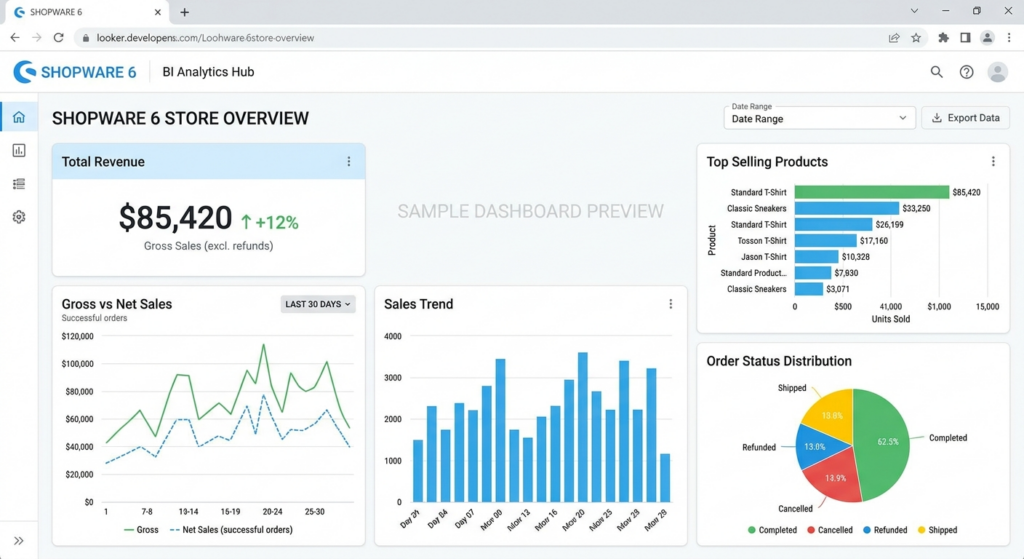
Once your warehouse or reporting database is stable, connect it into Looker, Power BI, Metabase, or Tableau. Keep BI tools connected to reporting layers only—not directly to your production Shopware database. Direct production queries slow stores down under load.
- Create reusable KPIs for revenue and AOV
- Separate gross and net sales reporting
- Validate dashboard numbers against Shopware admin reports
Shopware BI Export Checklist
0 of 7 completeMistakes Most Developers Make
! Reporting from production directly
What happens: Dashboard queries slow down checkout and admin performance.
Fix: Use a read replica or warehouse sync instead of live production reporting.
! Ignoring refunds and cancellations
What happens: Revenue dashboards inflate sales numbers and confuse finance teams.
Fix: Include order states, returns, and refund adjustments in your transformation layer.
! Full exports every sync
What happens: Sync jobs become slower every month and eventually start timing out.
Fix: Export only records changed since the previous successful sync.
Key Takeaway
The short version: exporting Shopware 6 data for BI tools works best when you separate operational commerce systems from reporting systems. CSV exports are fine early on, but serious reporting needs API pipelines or warehouse replication. Most reporting problems come from bad data structure, duplicate order logic, or querying production databases directly. Define your KPIs first, normalize your reporting layer properly, and automate incremental syncing. Start with Step 1—that one alone handles most of it.
Related Answers

Still need help?
Talk to our Shopware experts
We've handled GDPR/CCPA compliance for dozens of EU & US Shopware stores.