How to configure dynamic shipping rates (country/weight/price) in Shopware 6?
Quick Answer
Shopware 6 lets you create dynamic shipping rates based on country, cart value, weight, rules, and customer conditions using Shipping Methods and the Rule Builder. Most stores handle this with multiple shipping methods tied to availability rules and graduated price matrices. The setup is flexible—but the rule priority and pricing structure need to be planned carefully or customers will see duplicate or incorrect shipping options at checkout.
Before You Start
- ✦ Shipping zones planned — decide which countries or regions belong to each shipping logic before creating rules.
- ✦ Weight data completed — every physical product should have accurate weights or weight-based pricing will fail silently.
- ✦ Tax strategy confirmed — shipping taxes vary by country and can affect displayed checkout totals.
Create shipping rules
Start with the Rule Builder first. This is where Shopware decides when a shipping method should appear. Create separate rules for countries, minimum cart totals, weight ranges, or customer groups. Most developers try to build everything inside one shipping method (that gets messy fast). Instead, think in layers: one rule for geography, one for cart conditions, and another for special handling if needed.
- Create a country-based rule for each delivery region
- Add cart amount or weight conditions where required
- Name rules clearly using prefixes like EU, UK, Heavy, Free
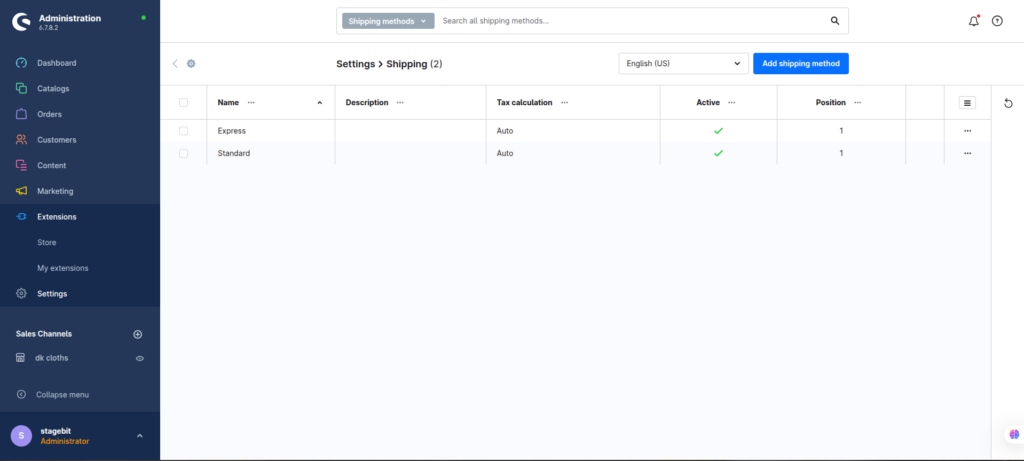
Create shipping methods
Create a separate shipping method for each pricing structure or carrier logic. For example, Standard EU Shipping, Express UK Shipping, and Free Shipping Over €100 should usually be different methods. Assign the availability rule created earlier so Shopware knows when to display each option during checkout.
- Set a clear storefront label customers understand
- Assign the correct delivery time and tax configuration
- Connect the matching availability rule
Configure price matrices
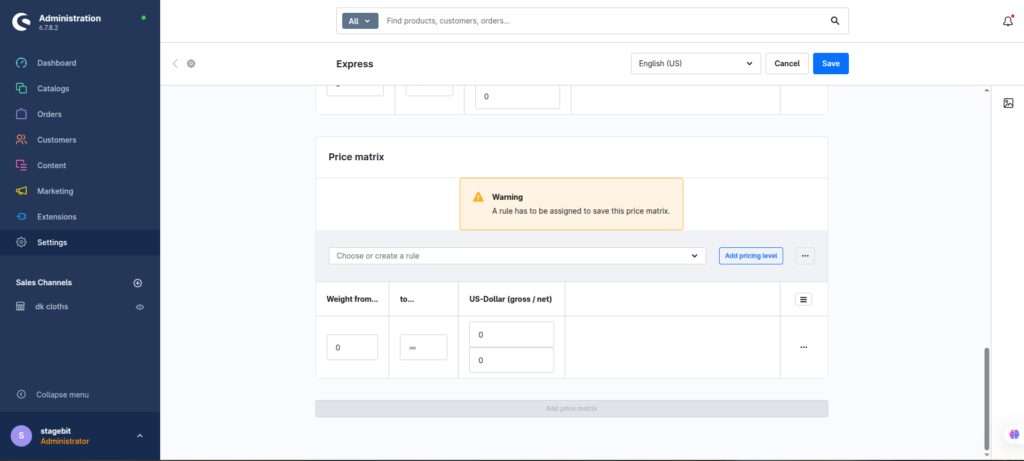
Inside each shipping method, configure the pricing matrix. Shopware supports shipping costs based on cart total, weight, item count, or volume. This is where dynamic pricing happens. For example, you can charge €6 below 5kg, €12 between 5kg and 20kg, then switch to freight pricing above that threshold.
- Select the calculation type for the shipping method
- Add multiple pricing rows for ranges and thresholds
- Test edge cases like exact threshold values
Add free shipping logic
Free shipping works best as its own shipping method with a dedicated Rule Builder condition. This gives you cleaner reporting and avoids pricing conflicts. You can target specific countries, customer groups, sales channels, or minimum cart values without affecting the standard shipping setup.
- Create a minimum cart value rule
- Set shipping price to zero
- Place the free shipping method above standard delivery
Test checkout scenarios
Testing is where most shipping projects succeed or fail. Run through real checkout combinations using different countries, cart totals, weights, currencies, and logged-in customer types. Also test what happens when products from multiple shipping categories are added together. Shopware rule conflicts usually show up here—not during configuration.
- Test every shipping threshold boundary
- Verify taxes and currencies at checkout
- Check mobile checkout flows separately
Shopware Shipping Setup Checklist
0 of 6 completeMistakes Most Developers Make
! Overlapping shipping rules
What happens: Customers see duplicate or conflicting shipping options during checkout.
Fix: Keep rules mutually exclusive and test every condition combination before launch.
! Missing product weights
What happens: Weight-based shipping costs calculate incorrectly or fail entirely.
Fix: Audit all physical SKUs and set fallback defaults for newly imported products.
! Gaps in pricing ranges
What happens: Customers reach checkout with no valid shipping method available.
Fix: Review all threshold boundaries and include catch-all fallback pricing.
Key Takeaway
The short version: dynamic shipping in Shopware 6 works best when you separate rules, shipping methods, and pricing logic into clean layers. Most checkout problems come from overlapping Rule Builder conditions, missing product weights, or incomplete pricing ranges. Create reusable country and cart rules first, then attach them to focused shipping methods with clear pricing matrices. Test every edge case before launch—especially free shipping thresholds and high-weight orders. Start with Step 1—that one alone handles most of it.
Related Answers

Still need help?
Talk to our Shopware experts
We've handled GDPR/CCPA compliance for dozens of EU & US Shopware stores.