How to migrate theme/design to Shopware 6 Shopping Experiences?
Quick Answer
Moving a custom Shopify, Magento, or older Shopware theme into Shopware 6 Shopping Experiences is usually a rebuild—not a direct theme import. The safest approach is to first recreate your layout structure in Shopping Experiences, then move reusable design pieces into a custom Shopware theme. Most migration problems happen when stores try to force old template logic into CMS blocks instead of redesigning around Shopware’s native system.
Before You Start
- ✦A design inventory — document your current homepage, category, PDP, and landing page layouts before rebuilding anything.
- ✦Access to original assets — you’ll need raw banners, fonts, icons, and brand colors instead of screenshots.
- ✦A staging environment — Shopping Experiences changes are visual and easy to break during migration.
Audit existing layouts
Start by mapping every layout your current store uses. Most stores have far more templates than they think. Homepage, PLP, PDP, blog, landing pages, campaign pages, and account pages often behave differently. Shopping Experiences works best when you standardise those layouts early.
- Capture screenshots of all major page types
- List reusable sections like hero banners and icon rows
- Remove outdated layouts before rebuilding them
Rebuild CMS structures
Create your base layouts inside Shopping Experiences first. Think of these as reusable page blueprints. Build separate layouts for product pages, categories, landing pages, and content pages. Keep them modular so your marketing team can edit sections later without developer involvement.
- Create shared layout templates before assigning products
- Use CMS sections instead of hardcoded HTML blocks
- Keep spacing and typography consistent across layouts
Move branding into theme
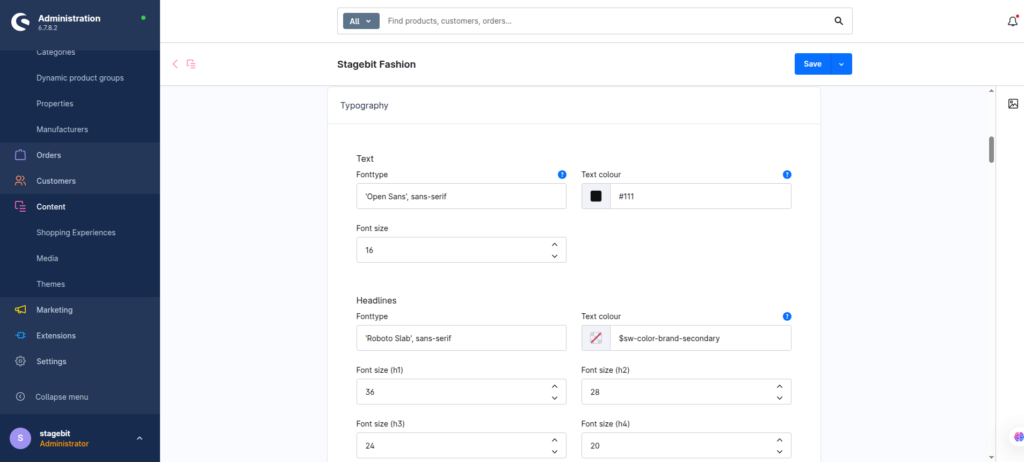
Shopping Experiences controls content structure, but your global styling should still live in the Shopware theme layer. Fonts, buttons, colours, spacing, and component styling belong there. This keeps the CMS clean and prevents editors from manually styling every page.
- Create a custom child theme instead of editing defaults
- Move fonts and colours into theme configuration
- Reuse global SCSS variables across components
Recreate custom components
Most mature stores have custom sections that do not exist in native Shopware blocks. Things like comparison tables, ingredient tabs, bundle builders, or brand storytelling sections usually need custom CMS elements. Build these as reusable blocks instead of one-off templates.
- Create custom CMS blocks for repeated layouts
- Connect dynamic product data through Twig or plugins
- Keep blocks lightweight to avoid slow CMS rendering
Test responsive behaviour
Shopping Experiences gives marketers a lot of visual control, which means layouts can break quickly on mobile if nobody validates them properly. Test every major page on real devices before launch. Pay special attention to banners, sliders, and spacing blocks.
- Check all breakpoints manually
- Test CMS pages after cache warmup
- Validate Core Web Vitals before go-live
Shopware Theme Migration Checklist
0 of 6 completeMistakes Most Developers Make
! Migrating pixel-perfect layouts
What happens: Old layouts become difficult to manage inside the CMS.
Fix: Simplify sections and rebuild around reusable Shopware blocks.
! Styling pages individually
What happens: Editors create inconsistent spacing, fonts, and buttons across pages.
Fix: Keep design tokens and typography inside the theme layer.
! Ignoring mobile layouts
What happens: CMS sections look fine on desktop but collapse badly on phones.
Fix: Test every Shopping Experiences layout on real mobile devices.
Key Takeaway
The short version: migrating a design into Shopware 6 Shopping Experiences works best when you separate layout structure from visual styling. Use Shopping Experiences for reusable content layouts and your custom theme for branding and component styling. Avoid rebuilding every old layout exactly as it was—that usually creates long-term maintenance problems. Focus on reusable CMS blocks, mobile testing, and clean theme architecture from the beginning. Start with Step 2—that one alone handles most of it.
Related Answers

Still need help?
Talk to our Shopware experts
We've handled GDPR/CCPA compliance for dozens of EU & US Shopware stores.