How to schedule rules for flash sales or seasonal promos?
Quick Answer
You can schedule flash sales and seasonal campaigns in Shopware by combining Rule Builder, dynamic promotions, and scheduled start/end dates inside the promotion configuration. Most stores also pair this with Flow Builder for automated banners, emails, or stock alerts when the campaign starts. The setup itself is not difficult—but the timing logic, rule priority, and cache handling are where most teams run into problems.
Before You Start
- ✦ Promotion permissions — your admin user needs access to promotions, rules, and Flow Builder settings.
- ✦ A staging environment — time-based pricing changes should always be tested before going live.
- ✦ Correct timezone settings — promo start times are based on your Shopware server and sales channel configuration.
Create your promotion
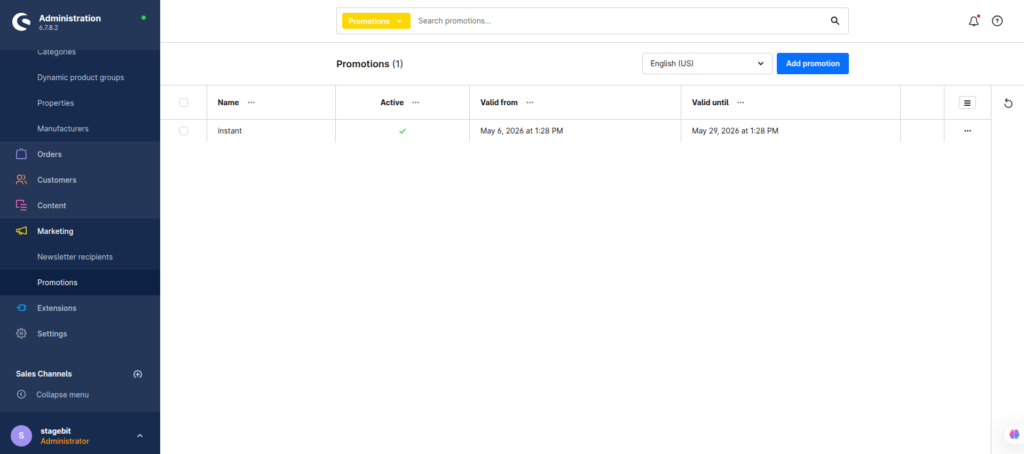
Start by creating the actual discount campaign. Define whether the promotion is percentage-based, fixed-price, free shipping, or cart-level. For flash sales, we usually recommend keeping the rule scope narrow so you do not accidentally discount entire catalogs. Seasonal promos tend to work better with category-based rules and customer group targeting.
- Create a new promotion campaign
- Select the discount type and value
- Limit the promotion to specific products or categories
Build timing rules
Create rules that control when the promotion becomes active. Shopware lets you combine date ranges, customer groups, cart values, regions, and product conditions inside one rule. This is where most stores handle Black Friday, end-of-season clearance, or limited-hour flash deals.
- Add a date or time condition
- Combine conditions for customer or product targeting
- Assign the rule to your promotion
Set promotion availability
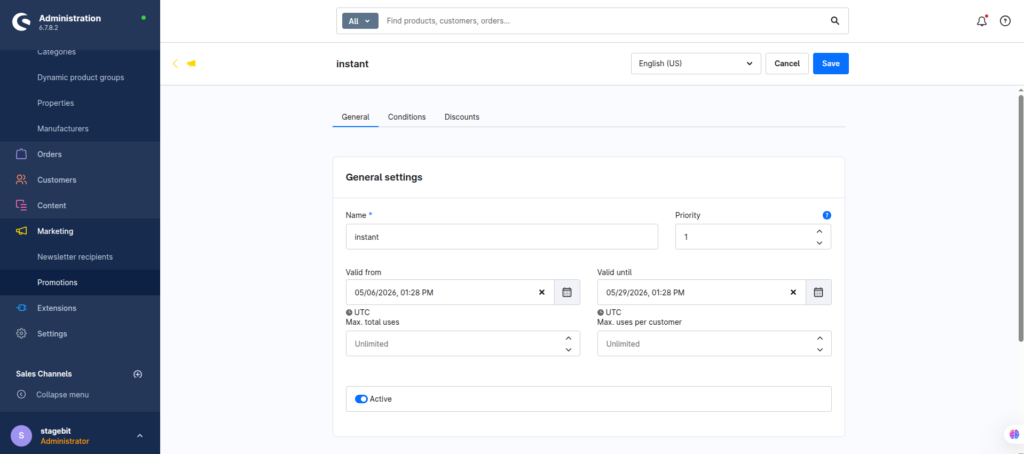
Shopware promotions support built-in start and end dates. Use these alongside Rule Builder instead of relying on rules alone. This gives you a second layer of protection if a rule is edited later by another admin or extension.
- Define the promotion start date
- Set an automatic expiration date
- Restrict usage limits if needed
Automate campaign actions
Most larger stores connect promotions to automated workflows. When the sale starts, you can trigger emails, Slack alerts, ERP webhooks, or inventory sync jobs automatically. This keeps marketing and operations aligned without manual coordination at midnight launches.
- Create a flow tied to promotion events
- Send automated notifications or webhook calls
- Trigger campaign-specific email templates
Test before launch
Always validate the promotion using staging or a hidden sales channel before going live. Cached prices, overlapping rules, and external ERP sync delays are the three things that usually break seasonal campaigns. A quick live simulation catches most of it.
- Place test orders with different customer groups
- Check storefront cache refresh timing
- Verify discount stacking behavior
Shopware Promotion Checklist
0 of 7 completeMistakes Most Developers Make
! Overlapping active promotions
What happens: Customers receive larger discounts than intended because multiple rules stack together.
Fix: Set clear promotion priorities and test every active rule combination before launch.
! Ignoring timezone mismatches
What happens: Promotions activate at the wrong hour during seasonal launches or international campaigns.
Fix: Match Shopware timezone settings with your server, CDN, and ERP integrations.
! Forgetting cache invalidation
What happens: Customers continue seeing outdated pricing after the sale starts.
Fix: Schedule cache purges and CDN refreshes before every large campaign launch.
Key Takeaway
The short version: Shopware already has everything you need for scheduled flash sales and seasonal campaigns through Promotions, Rule Builder, and Flow Builder. The real challenge is not creating the discount—it is controlling timing, rule overlap, and cache behavior under real traffic. Use both date-based rules and promotion availability windows together instead of relying on only one method. Test every scenario with multiple customer groups before launch. Start with Step 2—that one alone handles most of it.
Related Answers

Still need help?
Talk to our Shopware experts
We've handled GDPR/CCPA compliance for dozens of EU & US Shopware stores.