.How do I create a new Sales Channel in Shopware 6 (Storefront vs Headless)?
Quick Answer
In Shopware 6, you create a Sales Channel from the admin panel and then decide whether it should use the built-in Storefront or a Headless API-based frontend. Storefront channels are faster to launch and easier to manage. Headless channels give you more frontend flexibility, but they need a separate frontend app and extra API setup. The steps below cover both approaches and the settings most stores miss during setup.
Before You Start
- ✦ Admin access — you need permission to manage sales channels and domains.
- ✦ A configured domain or subdomain — each sales channel needs its own entry point.
- ✦ Theme and language setup — missing these creates broken storefront rendering and translation gaps.
Open sales channel settings
Shopware treats each storefront, marketplace, mobile app, or API frontend as a separate sales channel. This is where you define the domain, currencies, languages, payment methods, and customer experience for that channel. Most stores only use the default storefront channel at launch, but multi-brand and international stores usually add several more later.
- Open the Shopware admin panel
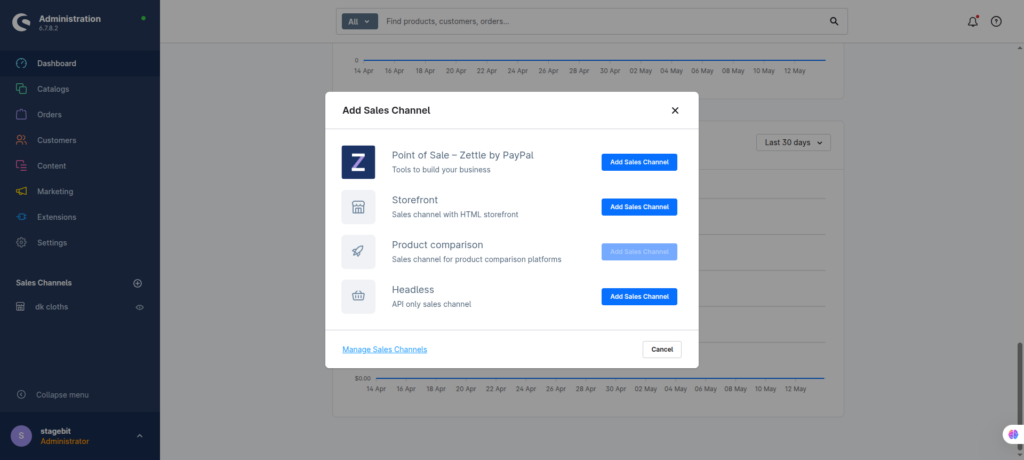
- Click “Create sales channel”
- Select Storefront or Headless
Configure the basic channel settings
After creating the channel, Shopware asks for the operational settings that control how customers interact with the store. This includes currencies, customer groups, shipping methods, payment methods, and languages. If you skip these assignments, the storefront may load but checkout can fail later (this catches most people off guard).
- Assign active currencies and languages
- Select payment and shipping methods
- Choose the navigation category
Set up a Storefront channel
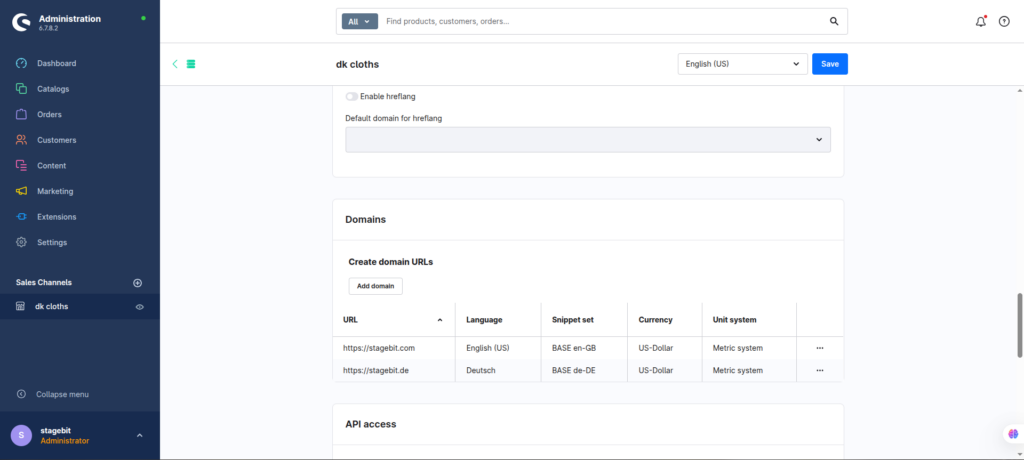
Storefront sales channels use Shopware’s built-in Twig-based frontend. This is still the best option for most stores because it launches faster, works with standard plugins, and needs less frontend engineering. Add your domain, assign an SSL-enabled URL, and link a theme to the channel.
- Add the storefront domain
- Assign the active theme
- Compile the theme and clear caches
Configure a Headless channel
Headless sales channels use Shopware only as the commerce backend. Your frontend runs separately in frameworks like Vue, React, Nuxt, or Next.js. Instead of rendering templates directly, the frontend pulls products, carts, and checkout data through the Store API. This setup gives more frontend freedom but adds deployment, hosting, and API management work.
- Enable Store API access
- Create API credentials if needed
- Connect the frontend app to the sales channel
Test the new sales channel
Before making the channel public, test the full customer flow. Most issues appear during checkout, language switching, or pricing rules. For headless builds, also test cart persistence, authentication, and API rate limits. A sales channel that loads correctly is not necessarily production-ready.
- Create a test order
- Verify taxes and shipping rules
- Check SEO URLs and domain redirects
Shopware Sales Channel Checklist
0 of 7 completeMistakes Most Developers Make
! Using one channel for everything
What happens: Pricing, rules, and customer groups become difficult to manage across regions or business models.
Fix: Create separate channels for B2B, B2C, marketplaces, and international storefronts.
! Forgetting theme assignment
What happens: The storefront loads with broken styles or default layouts.
Fix: Assign the correct theme and recompile it after creating the new channel.
! Skipping API permission planning
What happens: Headless frontends fail to fetch products, carts, or customer sessions correctly.
Fix: Create scoped API credentials and test Store API endpoints before frontend deployment.
Key Takeaway
The short version: creating a new Shopware 6 sales channel is mostly about configuring the right domain, storefront settings, and customer-facing rules. Storefront channels are usually the better choice for standard eCommerce builds because they launch faster and work with the wider Shopware plugin ecosystem. Headless channels make sense when you need a custom frontend experience, app integration, or multi-device commerce setup. Most launch issues come from missing theme assignments, navigation categories, or API permissions. Start with Step 1—that one alone handles most of it.
Related Answers

Still need help?
Talk to our Shopware experts
We've handled GDPR/CCPA compliance for dozens of EU & US Shopware stores.