.How do I add a second domain with its own language and currency?
Quick Answer
You can configure a second domain with its own language and currency in Shopware by creating a separate Sales Channel Domain entry. Each domain can use different languages, currencies, snippets, SEO URLs, and even tax settings. The setup usually takes under an hour—but most problems happen when language packs, currency assignments, or domain mappings are missed. The steps below cover the full setup and the mistakes that break multi-domain storefronts most often.
Before You Start
- ✦ Additional domain or subdomain — Point it to your Shopware hosting before adding it in admin.
- ✦ Installed language pack — The storefront language must exist before you can assign it to a domain.
- ✦ Assigned currencies — Shopware only shows currencies linked to the Sales Channel.
Create the storefront language
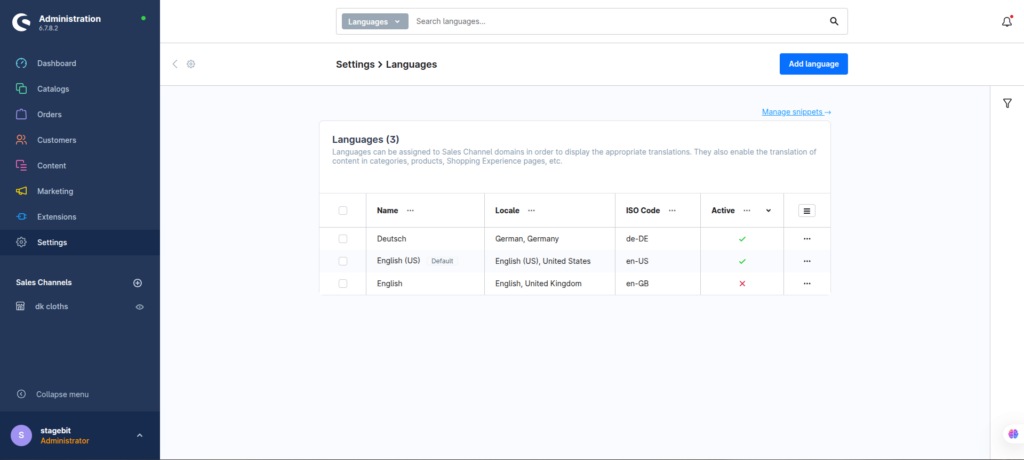
Start by adding the language your second domain will use. Shopware separates languages from domains, so the language must exist first. If you’re creating a German storefront, install the German language pack and verify that snippets and translations are active. This also affects checkout labels, transactional emails, and SEO URLs.
- Install the required language pack
- Enable snippets for the storefront language
- Set fallback language correctly
Add the currency
Create or enable the currency you want for the new domain. Shopware allows multiple currencies per Sales Channel, but you can define a default currency for each domain mapping. Exchange rates should also be verified before launch—especially if prices are calculated dynamically instead of imported from ERP or PIM systems.
- Create the currency if it does not exist
- Check exchange rates and decimal formatting
- Assign the currency to the storefront Sales Channel
Create the second domain
Add your new domain or subdomain under the storefront Sales Channel. This is where Shopware connects the domain to a language, currency, and snippet set. Most multi-country setups use either separate ccTLDs like .de and .fr, or language subfolders such as /de and /fr.
- Enter the full domain URL with HTTPS
- Select the correct language
- Assign the default currency
Configure SEO URLs
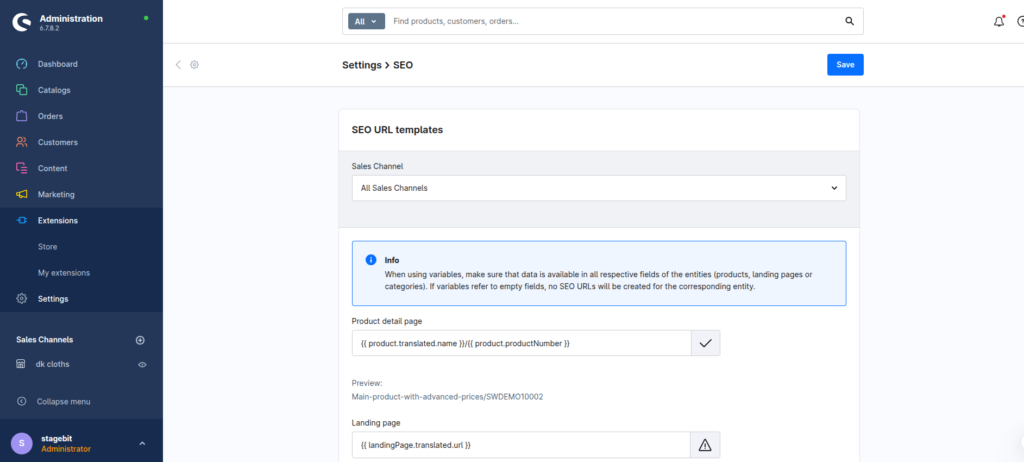
After adding the domain, regenerate SEO URLs so Shopware creates localized product and category URLs. This matters for indexing, hreflang handling, and duplicate content prevention. If your translated products are incomplete, some URLs may still show the fallback language.
- Rebuild SEO indexes after domain setup
- Verify translated category and product names
- Check hreflang tags in storefront source
Test storefront behavior
Before going live, test the full storefront flow on the new domain. That includes category navigation, cart totals, checkout, emails, and payment providers. Some plugins cache domain settings aggressively, so clear caches after every major configuration change.
- Place a test order on the new domain
- Verify currency formatting in checkout
- Clear caches and warm up storefront cache
Shopware Multi-domain Checklist
0 of 7 completeMistakes Most Developers Make
! Forgetting currency assignment
What happens: The storefront loads correctly but prices stay in the default currency.
Fix: Assign the currency directly inside the Sales Channel configuration and clear caches afterward.
! Missing translated content
What happens: Product pages mix multiple languages and hurt SEO quality.
Fix: Translate product names, categories, CMS blocks, and email templates before launch.
! Skipping SEO URL regeneration
What happens: Category and product pages return incorrect URLs or 404 errors.
Fix: Rebuild SEO indexes immediately after adding or changing storefront domains.
Key Takeaway
The short version: Shopware handles multi-domain storefronts very well if you configure languages, currencies, and domain mappings in the correct order. Most issues come from missing Sales Channel assignments, untranslated content, or skipped SEO regeneration. Treat each storefront domain like its own localized experience—not just a translated URL. Always test checkout, emails, and tax calculations before launch. Start with Step 1—that one alone handles most of it.
Related Answers

Still need help?
Talk to our Shopware experts
We've handled GDPR/CCPA compliance for dozens of EU & US Shopware stores.