How to create post‑purchase flows: review, upsell, subscription reminders?
Quick Answer
You can build fully automated post-purchase flows in Shopware using Flow Builder, scheduled tasks, email templates, and webhook actions. Most stores use these flows for review requests, cross-sell offers, replenishment reminders, and subscription renewals. The setup usually takes a few hours because you need to connect triggers, conditions, customer segmentation, and external tools correctly. This page covers the exact setup structure we use on real Shopware stores.
Before You Start
- ✦ Flow Builder access — you need admin permissions to create events, conditions, and actions
- ✦ Email templates configured — review and upsell flows fail fast when templates are missing or incomplete
- ✦ Product tagging strategy — this makes targeted upsells much easier later
Create your automation structure
Start by separating your post-purchase flows into three groups: review requests, upsell campaigns, and subscription or replenishment reminders. Most stores try to handle everything inside one large flow and it becomes impossible to debug later. Keep each flow focused on one outcome only. That also makes reporting cleaner when you’re tracking conversion rates or email performance.
- Create separate flows for each customer action
- Name flows consistently using prefixes like Review or Upsell
- Document timing delays before building triggers
Build review request flows
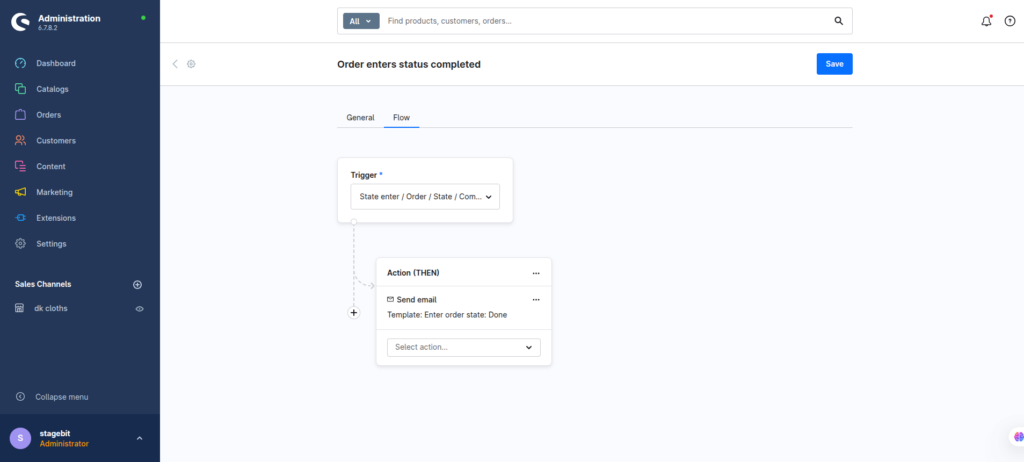
Review flows work best when they trigger after delivery instead of immediately after checkout. Customers usually ignore review emails sent too early. Add a delay based on your average shipping time, then send the customer to a product review page or third-party review platform. For consumables, seven to 14 days after delivery usually performs well. For furniture or higher-value products, wait longer.
- Trigger the flow after order completion
- Add a time delay before sending the email
- Insert dynamic product data into the template
Configure upsell automations
Upsell flows work best when products are grouped logically instead of randomly recommending catalog items. Use product tags, properties, or dynamic product groups to control what customers see. A skincare store might recommend serums after moisturiser purchases. A B2B store might suggest refill packs after equipment orders. Keep the timing close to the original purchase while buying intent is still high.
- Create dynamic product groups for cross-sells
- Use conditional rules based on purchased products
- Include discount codes only when margin allows it
Set subscription reminders
Shopware does not handle advanced subscription logic natively as deeply as dedicated subscription platforms, so most stores combine Flow Builder with subscription extensions or external billing systems. The reminder flow itself is simple: detect the renewal date, wait until a defined period before expiry, then send reminder emails or webhook events to connected systems.
- Create reminder delays before renewal dates
- Trigger webhook calls to subscription systems
- Send renewal links with customer account access
Track flow performance
Automation only matters if the flows actually convert. Connect your Shopware events to analytics or CRM platforms so you can measure review completion rates, upsell revenue, and subscription retention. Most teams skip this part and end up running automations blindly for months. Even basic tracking helps you identify which products, timings, and customer groups perform best.
- Track email open and click performance
- Measure revenue generated from upsell flows
- Adjust timing delays based on customer behaviour
Shopware Post-Purchase Automation Checklist
0 of 7 completeMistakes Most Developers Make
! Sending flows too early
What happens: Customers receive review or upsell emails before products arrive.
Fix: Add shipping and delivery delay logic before triggering customer emails.
! Ignoring order state filters
What happens: Cancelled or refunded orders still trigger automation emails.
Fix: Add conditions for completed, paid, or delivered order states only.
! Using generic upsell products
What happens: Customers ignore emails because recommendations feel random.
Fix: Build product relationships using tags, categories, or buying patterns.
Key Takeaway
The short version: Shopware post-purchase automation works best when you separate review, upsell, and renewal flows instead of combining them into one giant setup. Use Flow Builder for event handling, conditions, delays, and webhook triggers. Most problems come from bad timing logic or missing order state filters. Track actual conversion performance from day one so you know which flows make money and which ones customers ignore. Start with Step 2—that one alone handles most of it.
Related Answers

Still need help?
Talk to our Shopware experts
We've handled GDPR/CCPA compliance for dozens of EU & US Shopware stores.