How to manage roles and permissions in the Shopware admin?
Quick Answer
Shopware lets you create custom admin roles so each staff member only sees and accesses the areas they actually need. You can control permissions for orders, products, customers, settings, apps, and even specific admin actions using the ACL system inside the admin panel. The safest setup is to create role-based access groups instead of giving everyone full administrator access.
Open user management
Shopware handles admin access through its ACL system (Access Control List). This is where you create users, assign roles, and limit what each account can access inside the admin. Most stores start with too many administrator accounts, which creates security and operational problems later.
- Open the Shopware admin panel
- Navigate to Users & permissions
- Review existing users and access levels
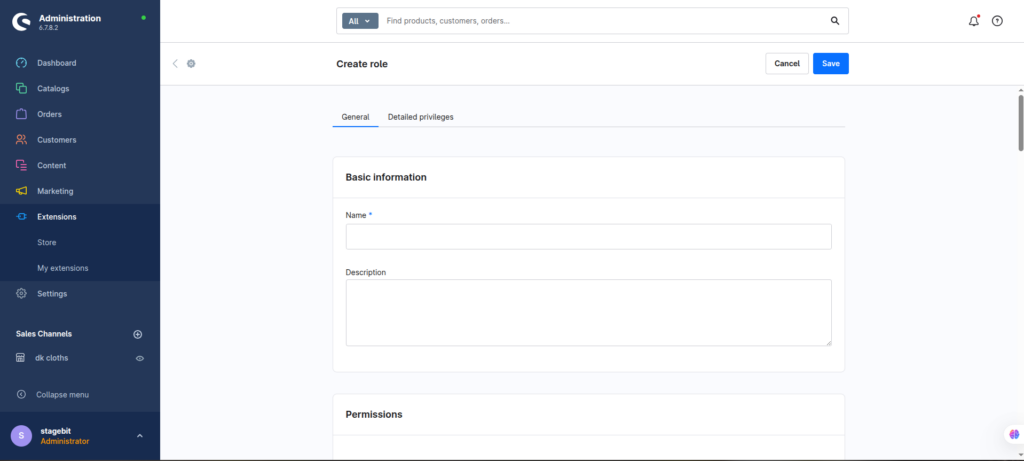
Create custom roles
Roles let you reuse the same permission set across multiple users. Instead of configuring every account manually, create roles like Content Manager, Customer Support, Warehouse Staff, or Marketing Manager. This makes onboarding faster and avoids inconsistent permissions between team members.
- Click Add role
- Name the role clearly
- Save the role before assigning permissions
Assign permissions
Shopware permissions are grouped by module. You can allow read, edit, create, or delete access depending on the area. For example, support teams may need order access but should not edit products or system settings. This separation reduces accidental changes inside production stores.
- Select the required admin modules
- Enable only the actions users actually need
- Save and review the final access list
Assign roles to users
Once roles are configured, attach them to individual admin users. Every user should have their own account so actions can be tracked correctly inside logs and activity history. Shared admin accounts create security gaps and make troubleshooting much harder later.
- Open the user account
- Select the appropriate role
- Test the account before handing it over
Shopware Permissions Checklist
0 of 5 completeKey Takeaway
The short version: Shopware permissions work best when you create role-based access instead of handing out full administrator accounts. Limit access to only the modules each team needs, especially system settings and extensions. Always test roles with a separate user account before using them in production. Shared admin accounts create audit and security problems fast. Start with Step 2—that one alone handles most of it.
Related Answers

Still need help?
Talk to our Shopware experts
We've handled GDPR/CCPA compliance for dozens of EU & US Shopware stores.