How to set up unit measurements and packaging rules per sales channel?
Quick Answer
In Shopware, you set unit measurements and packaging rules by combining product units (base, purchase, and reference units) with sales-channel-specific rules using Rule Builder and shipping configurations. This lets you control how quantities, packs, and delivery constraints behave per channel. Below is the exact setup flow used in real multi-market stores.
Before You Start
- ✦Shopware Admin access — required to configure units, products, and rule builder settings.
- ✦Sales channels defined — EU/US or B2B/B2C separation must already exist.
- ✦Clear packaging logic — e.g. “sold individually in EU, boxed in US”.
Define base product units
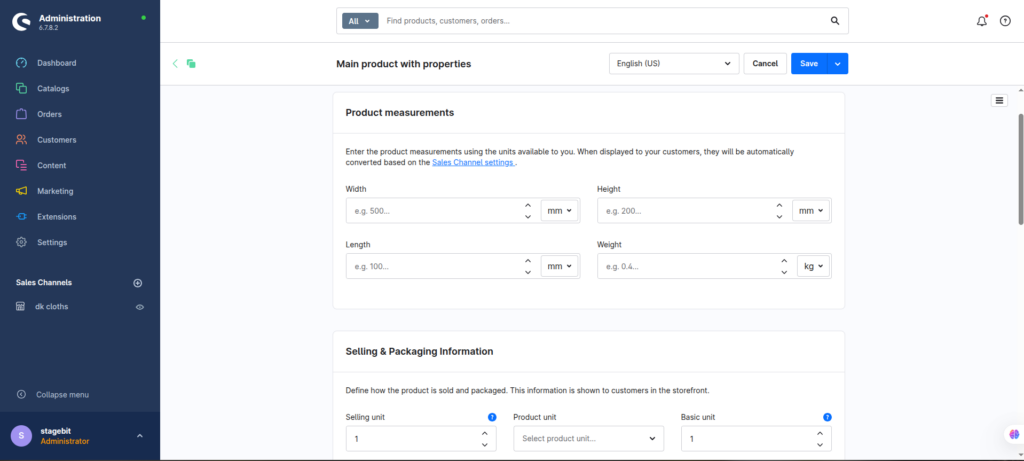
Start by setting consistent unit definitions for your catalogue. In Shopware, this lives in the product configuration where you define purchase units, reference units, and packing units. This step matters because everything downstream — pricing, shipping weight, and packaging logic — depends on these base definitions being correct.
- Set base sales unit (piece, kg, liter)
- Define purchase unit if different from sales unit
- Assign reference unit for pricing normalization
Configure packaging logic per product
Next, define how products are packed. This is where you control whether a product is sold individually, in bundles, or in fixed cartons. Most teams miss that packaging rules in Shopware are not global — they sit on product-level fields and can be overridden per sales channel via rules.
- Set “purchase steps” for multiples (e.g. 6, 12, 24)
- Define minimum and maximum order quantities
- Assign packaging unit labels (box, case, pallet)
Create sales-channel-specific rules
Use Rule Builder to differentiate EU vs US behaviour. This is where you avoid duplicated products. Instead of cloning catalogues, you define conditions like “Sales Channel = EU Store” and apply different packaging constraints or unit visibility.
- Create rule for each sales channel
- Attach rule to product visibility or pricing
- Control allowed order quantities per region
Align shipping and packaging constraints
Finally, connect your packaging rules to shipping methods. This ensures that a “case of 12” or “pallet-only product” behaves correctly at checkout. Without this, customers can bypass your intended packaging logic simply by changing quantities.
- Link shipping methods to rule conditions
- Apply weight-based or quantity-based restrictions
- Test checkout per sales channel
Shopware Packaging Checklist
0 of 6 completeMistakes Most Developers Make
! Using global unit settings only
What happens: All sales channels inherit the same unit logic, breaking regional packaging expectations.
Fix: Use Rule Builder conditions per sales channel instead of global product defaults.
! Ignoring pack size validation
What happens: Customers can order invalid quantities like 7 when only 6-pack units exist.
Fix: Enforce purchase steps and minimum order quantities in product configuration.
Key Takeaway
The short version: Shopware does not treat packaging and units as a single global setting. You combine product-level unit definitions with Rule Builder logic to make packaging behave differently per sales channel. The key mistake is trying to solve this only at product level. Start with Step 1—that alone removes most inconsistencies between EU and US storefronts.
Related Answers

Still need help?
Talk to our Shopware experts
We've handled GDPR/CCPA compliance for dozens of EU & US Shopware stores.