How to display tax‑inclusive prices for B2C and tax‑exclusive for B2B?
Quick Answer
You can configure Shopware to show tax-inclusive prices for B2C customers and tax-exclusive prices for B2B accounts by combining customer groups, tax display settings, and rule-based customer assignment. Most stores handle this with separate B2C and B2B customer groups tied to different tax states. The setup itself is not difficult—but incorrect customer group logic causes most pricing issues at checkout. The steps below cover the cleanest setup we use on mixed B2B/B2C Shopware stores.
Before You Start
- ✦ Separate customer groups — you’ll need dedicated B2C and B2B groups before configuring tax display logic.
- ✦ Business account validation — B2B customers should only enter the B2B group after VAT or company verification.
- ✦ Correct tax rules — your country tax rates and tax rules must already exist in Shopware.
Create customer groups
Start by separating your B2C and B2B audiences into different customer groups. Most stores already have a default storefront group for retail customers. Create a second group specifically for trade or wholesale accounts. This separation is what controls how taxes display across the storefront, cart, and checkout. Avoid reusing the default group for B2B customers—that becomes difficult to manage later when pricing rules expand.
- Create a B2B customer group
- Name groups clearly like Retail and Trade
- Keep guest users inside the B2C group
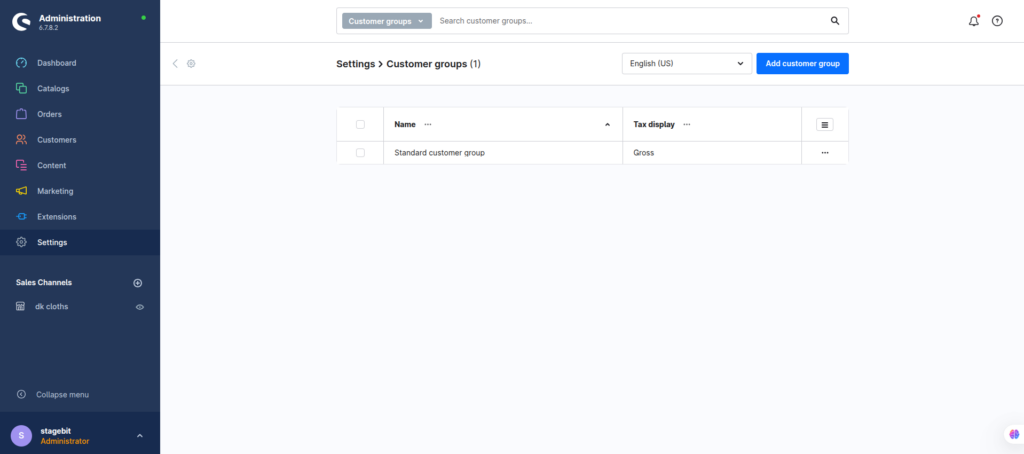
Configure tax display
Shopware uses customer tax state and customer group logic together to determine whether prices appear gross or net. For B2C users, keep prices displayed including VAT. For B2B groups, configure the tax state to show net pricing. This affects product listings, PDPs, cart totals, and order summaries. Many developers only test product pages and miss checkout calculations entirely.
- Enable gross pricing for retail customers
- Configure B2B accounts to use net pricing
- Verify tax labels in the storefront theme
Assign B2B customers automatically
The cleanest setup uses rules to move approved business customers into the B2B customer group automatically. This prevents manual admin work and reduces pricing mistakes. Most stores use VAT ID presence, account tags, company fields, or sales channel approval states as conditions. If you run multiple EU markets, this becomes even more useful because VAT handling differs by country and customer type.
- Create a rule for verified business accounts
- Use VAT ID or company fields as conditions
- Assign matching users to the B2B group
Test storefront pricing
Before going live, test every pricing scenario from product listing through checkout confirmation. Do this with separate browser sessions because cached customer states can hide issues. Also test guest checkout, logged-in B2C users, approved B2B accounts, and users pending approval. Stores usually discover problems here with shipping tax calculation or mixed cart discounts.
- Verify gross prices for retail users
- Verify net prices for business accounts
- Check invoices and order emails carefully
Adjust theme messaging
Customers need clear tax messaging or they will assume pricing is wrong. Update your storefront labels to explicitly state whether prices include or exclude VAT. This matters even more on mixed-audience stores where users switch between account types. Most confusion comes from product listing pages where tax hints are too subtle.
- Add “incl. VAT” labels for B2C pricing
- Add “excl. VAT” labels for B2B pricing
- Update cart and invoice wording consistently
Shopware Tax Display Checklist
0 of 6 completeMistakes Most Developers Make
! Mixing B2B and retail groups
What happens: Retail customers may see tax-exclusive prices after login.
Fix: Keep separate customer groups and assign them through validated rules only.
! Forgetting checkout testing
What happens: Product pages look correct but shipping and discounts calculate incorrectly at checkout.
Fix: Test complete order flows with both B2B and B2C accounts before launch.
! Skipping VAT validation
What happens: Unverified users gain access to net pricing and VAT-free ordering.
Fix: Add manual approval or automated VAT verification before assigning B2B status.
Key Takeaway
The short version: Shopware already supports mixed B2C and B2B tax display setups—but the structure matters. Separate customer groups, validated B2B approval logic, and proper tax state handling do most of the heavy lifting. The biggest problems usually come from skipped checkout testing or automatic B2B approval rules. Clear storefront messaging also matters more than most teams expect. Start with Step 1—that one alone handles most of it.
Related Answers

Still need help?
Talk to our Shopware experts
We've handled GDPR/CCPA compliance for dozens of EU & US Shopware stores.