How to launch A/B tests on CMS pages in Shopware 6?
Quick Answer
You can run A/B tests on Shopware 6 CMS pages by creating multiple CMS layout variants, splitting traffic with a testing tool or custom logic, and tracking conversions through analytics events. Most stores use Google Tag Manager, Google Analytics 4, VWO, or a lightweight custom middleware setup. The key is keeping caching, URL consistency, and event tracking aligned—otherwise your test data becomes unreliable fast.
Before You Start
- ✦ Analytics tracking — You need reliable conversion events before testing anything.
- ✦ Separate CMS layouts — Each variation should use its own Shopping Experience layout.
- ✦ Cache awareness — Full-page cache can accidentally serve the wrong variant to users.
Define the test goal
Start with one measurable conversion target. Usually that’s add-to-cart rate, newsletter signups, average order value, or landing page conversion rate. Don’t test multiple unrelated changes in the same experiment. Changing the hero banner, navigation structure, and CTA copy all at once makes the result impossible to trust. Most failed A/B tests are actually reporting problems, not traffic problems.
- Choose one conversion metric
- Estimate minimum traffic volume first
- Document exactly what changes between variants
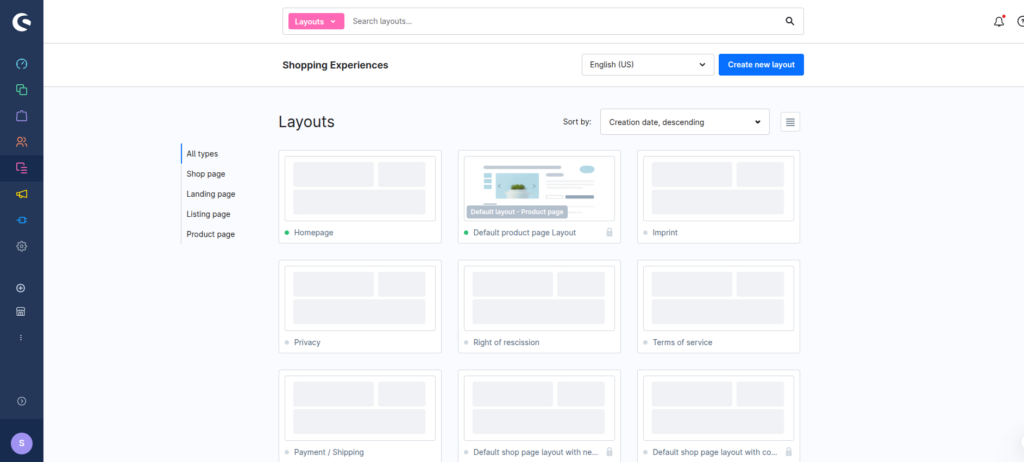
Create CMS page variants
Duplicate your existing CMS layout and build a separate variation for the experiment. Keep the structure clean and name variants clearly like “Homepage-A” and “Homepage-B”. If you’re testing specific blocks, duplicate only the affected sections instead of rebuilding the entire page. This keeps maintenance manageable during the test window and avoids publishing errors later.
- Duplicate the existing CMS layout
- Change only the tested elements
- Keep variant naming consistent
Split traffic between variants
This is where most Shopware stores need custom handling. Shopware doesn’t include native A/B testing logic for CMS pages, so you need a testing layer. The cleanest setup is server-side assignment through middleware or a personalization engine. Client-side swapping with JavaScript works for lightweight tests, but it can create layout shifts and tracking inconsistencies.
- Assign users consistently with cookies or sessions
- Use a 50/50 split for most tests
- Keep users on the same variant across visits
Track conversion events
Every variant needs its own tracking identifier. In practice, that usually means sending a custom event
parameter like variant=A or variant=B into GA4, Matomo, or your analytics stack. Don’t
rely only on page URLs because many Shopware tests use the same route with dynamic rendering underneath.
- Push variant data into the dataLayer
- Validate events in GA4 debug mode
- Track both micro and final conversions
Publish and monitor the test
Launch the experiment and leave it alone long enough to gather meaningful data. Most stores stop tests too early after seeing short-term spikes. Watch for technical problems first—broken blocks, CLS issues, missing events, or cache mismatches. Only evaluate the winner after the test reaches statistical confidence and enough sessions.
- Check analytics daily during launch week
- Watch Core Web Vitals during the test
- Document the winning variant clearly
Shopware A/B Testing Checklist
0 of 8 completeMistakes Most Developers Make
! Testing without clean analytics
What happens: You end up measuring noise instead of actual conversion changes.
Fix: Validate every tracking event before exposing traffic to the experiment.
! Ignoring full-page caching
What happens: Visitors randomly switch between variants and pollute the results.
Fix: Configure cache keys or bypass logic based on the assigned experiment cookie.
! Ending tests too early
What happens: Short-term spikes create fake winners that hurt long-term conversion rates.
Fix: Run tests through at least one full business cycle including weekends and campaigns.
Key Takeaway
The short version: Shopware 6 can handle A/B testing well, but you need external traffic assignment and reliable analytics tracking to make it work properly. Create separate CMS layout variants, persist users into a single experience, and verify that caching doesn’t break the experiment. Most reporting problems come from inconsistent tracking or mid-test content changes. Start with Step 3—that one alone handles most of it.
Related Answers

Still need help?
Talk to our Shopware experts
We've handled GDPR/CCPA compliance for dozens of EU & US Shopware stores.