How to show different prices/promotions per customer group with Rule Builder?
Quick Answer
You can show different prices, discounts, and promotions per customer group in Shopware by combining customer groups with Rule Builder conditions. Most stores do this for B2B pricing, VIP discounts, wholesale catalog access, or region-specific campaigns. The setup usually involves creating customer groups first, then attaching Rule Builder conditions to promotions, shipping methods, payment methods, or Dynamic Product Groups.
Before You Start
- ✦ Customer groups already created — your pricing logic depends entirely on clean customer segmentation.
- ✦ Promotion requirements defined — decide upfront whether you need fixed pricing, percentage discounts, or catalog restrictions.
- ✦ Test customer accounts — switching between groups manually during testing saves a huge amount of time.
Create customer groups
Start by separating customers into logical groups like Wholesale, VIP, Retail, Distributor, or Staff. This sounds simple, but most pricing problems later come from weak customer segmentation. Keep the naming clean and tied to business logic instead of temporary campaigns. If you mix customer types and promotional types together, Rule Builder conditions become difficult to maintain six months later.
- Create dedicated customer groups for pricing tiers
- Assign test customers to each group
- Keep B2B and campaign groups separate
Build Rule Builder conditions
Create rules that target specific customer groups. In most cases you’ll use conditions like Customer Group Is Equal To Wholesale or Customer Group Is One Of VIP, Distributor. Rule Builder is effectively the logic engine behind promotions, shipping, and visibility conditions in Shopware. So getting these rules right early saves a lot of duplicated setup later.
- Create one rule per business scenario
- Add customer group conditions carefully
- Name rules based on outcome, not department
Assign promotions to rules
Promotions are where most stores actually surface customer group pricing differences. You can create percentage discounts, fixed reductions, free shipping offers, or cart-level promotions tied directly to Rule Builder conditions. This works especially well for temporary VIP campaigns because you avoid touching product prices themselves.
- Create the promotion normally
- Attach the Rule Builder condition under availability
- Test discounts with multiple customer accounts
Configure advanced pricing
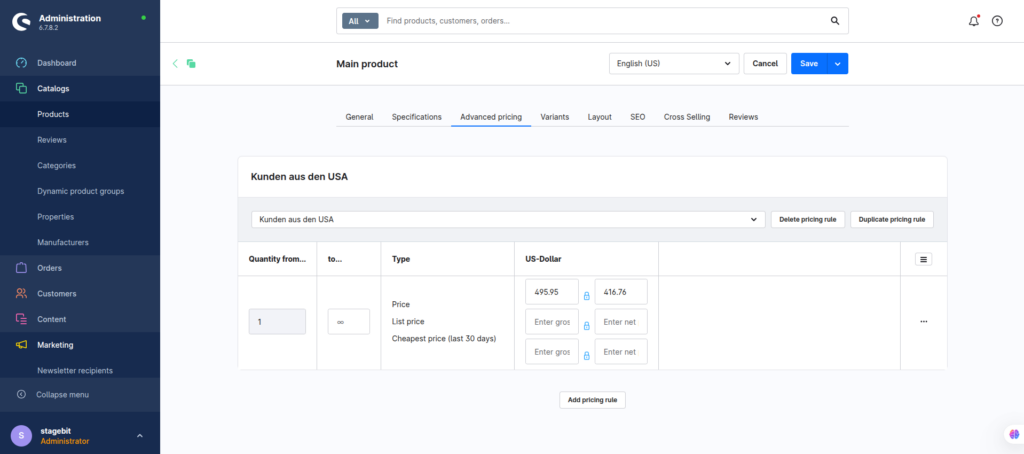
If you need true customer-group pricing instead of promotional discounts, use Advanced Prices on products. This lets you assign completely different product prices per customer group. Most B2B stores use this approach for wholesale pricing because the customer sees the correct base price immediately instead of a discount applied later in cart.
- Add advanced prices per customer group
- Set quantity tiers if needed
- Verify tax calculations for each group
Test storefront behaviour
Before going live, test every pricing scenario directly in the storefront. Admin previews are not enough here. Pay close attention to guest users, cached sessions, stacked promotions, and tax display differences. Stores with multiple active promotions often discover overlapping rules after launch rather than during setup.
- Test each customer group separately
- Verify cart totals and discounts
- Check behaviour on mobile and desktop
Shopware Pricing Rules Checklist
0 of 7 completeMistakes Most Developers Make
! Overlapping promotion rules
What happens: Customers receive stacked discounts that were never intended.
Fix: Limit promotion combinations and test all active rules together before launch.
! Mixing pricing approaches
What happens: Teams lose track of whether pricing comes from Advanced Prices or promotions.
Fix: Use Advanced Prices for permanent pricing and promotions for campaigns only.
! Ignoring storefront cache
What happens: Developers think rules are broken when cached sessions are actually serving old pricing.
Fix: Clear cache and test in private browsing sessions while validating pricing logic.
Key Takeaway
The short version: Shopware handles customer-specific pricing very well if you separate permanent pricing from promotional logic early. Use customer groups plus Rule Builder for campaign targeting, and use Advanced Prices for long-term B2B pricing structures. Most issues come from overlapping rules, unclear naming, or poor testing across cached storefront sessions. Keep your rules small and reusable instead of building giant condition trees. Start with Step 1—that one alone handles most of it.
Related Answers

Still need help?
Talk to our Shopware experts
We've handled GDPR/CCPA compliance for dozens of EU & US Shopware stores.