How to generate sitemaps and robots rules in Shopware 6?
Quick Answer
Shopware 6 can generate XML sitemaps automatically and lets you define custom robots.txt rules per sales channel. The core setup is done from the admin panel, but you’ll also want to verify your SEO URLs, domain configuration, and cache behaviour to avoid indexing problems. Most sitemap issues come from incorrect domain setup or disabled SEO indexing. The steps below cover the full setup, validation process, and the mistakes we see most often during launches and migrations.
Before You Start
- ✦ A configured sales channel domain — sitemap URLs are generated from your assigned storefront domain
- ✦ SEO URLs enabled — Shopware needs indexed SEO URLs to build clean sitemap entries
- ✦ CLI or scheduled task access — larger catalogs usually need automated sitemap refreshes
Configure your storefront domain
Before generating anything, make sure your storefront domain is correct. Shopware uses the assigned sales channel URL as the base for sitemap entries and robots references. If you migrated from another platform or recently changed domains, double-check that HTTPS, canonical domains, and language-specific URLs are all correct. We’ve seen stores accidentally index staging environments because this step was skipped during launch week.
- Open the correct sales channel
- Verify the storefront domain uses HTTPS
- Remove old staging or temporary domains
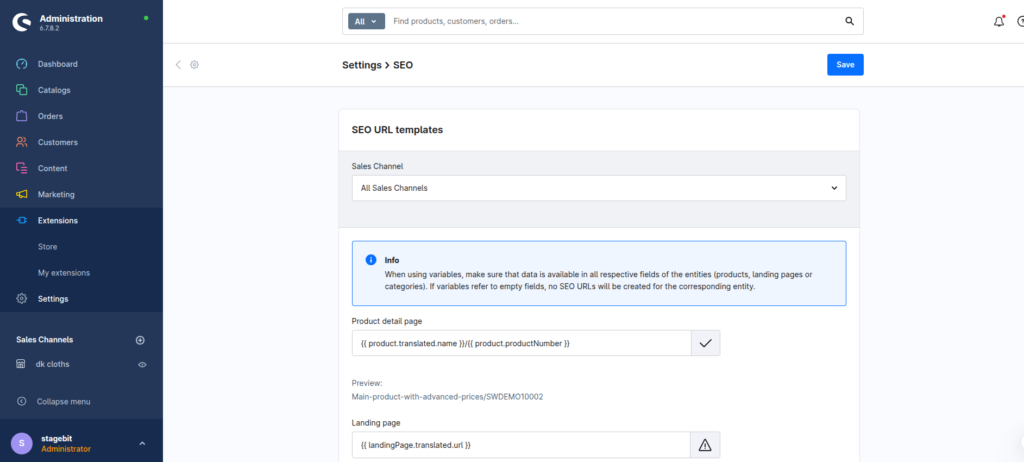
Enable SEO URL indexing
Shopware generates sitemap entries from indexed SEO URLs. If indexing is disabled or incomplete, your sitemap will either be empty or filled with technical URLs. This becomes a bigger problem on stores with multiple languages or custom product visibility rules. Run indexing after large imports, migrations, or URL structure changes so the sitemap reflects the current storefront structure.
- Enable SEO URL generation
- Run the SEO indexer manually after imports
- Check category and product visibility rules
Generate the XML sitemap
Shopware can generate sitemaps manually from the admin panel or automatically through scheduled tasks. For smaller catalogs, the admin generator is usually enough. But once you cross a few thousand products, automated generation becomes safer and more reliable. The sitemap is typically available at /sitemap.xml, and Shopware will split large files into multiple sitemap indexes automatically.
- Click Generate Sitemap for the target sales channel
- Open the sitemap URL in a browser
- Verify products and categories appear correctly
Add custom robots rules
Shopware lets you manage robots.txt content per sales channel. This matters for international stores, B2B storefronts, or staging environments where indexing rules differ between domains. Most stores only need a few custom disallow rules for filters, account pages, and search results. Keep it simple. Overblocking URLs is far more common than underblocking them.
- Add disallow rules for internal search pages
- Reference your sitemap.xml URL
- Keep category and product URLs crawlable
User-agent: *

Disallow: /search
Disallow: /account
Sitemap: https://yourstore.com/sitemap.xml
Automate regeneration tasks
On active stores, sitemap generation should not depend on someone remembering to click a button after imports. Use scheduled tasks or cron jobs so sitemap and SEO indexing stay current automatically. This matters even more on stores connected to ERPs or PIM systems where products change throughout the day. Manual sitemap workflows usually break six months later when the original launch team is gone.
- Enable scheduled tasks for sitemap updates
- Monitor indexing after large imports
- Re-submit sitemaps after URL migrations
Shopware Sitemap & Robots Checklist
0 of 8 completeMistakes Most Developers Make
! Blocking category filters incorrectly
What happens: Important faceted navigation pages stop getting indexed and organic traffic drops.
Fix: Only block low-value filtered URLs and test crawlability after each robots update.
! Forgetting multilingual sitemap entries
What happens: Google indexes the wrong language versions or ignores localized pages entirely.
Fix: Generate separate sitemap structures per sales channel and verify hreflang setup.
! Leaving staging indexing enabled
What happens: Search engines index duplicate content from non-production environments.
Fix: Block staging domains entirely with robots.txt and server-level authentication.
Key Takeaway
The short version: Shopware 6 already includes sitemap and robots.txt management, but the real work is making sure your domains, SEO URLs, and indexing processes are configured properly. Most SEO problems happen after migrations, imports, or multi-language launches where sitemap generation was technically enabled but never validated. Keep robots rules conservative, automate sitemap regeneration, and monitor Search Console after every major change. Start with Step 1—that one alone handles most of it.
Related Answers

Still need help?
Talk to our Shopware experts
We've handled GDPR/CCPA compliance for dozens of EU & US Shopware stores.