How to manage hreflang for multi‑language Shopware 6 stores?
Quick Answer
Shopware 6 does not output hreflang tags out of the box—you need either the official SwagLanguagePack plugin or a custom theme override to generate them correctly across sales channels. Getting this wrong means Google either ignores your language signals entirely or serves the wrong language variant to the wrong country. This page covers the full setup: plugin configuration, manual theme implementation, and the sitemap hreflang approach.
Before You Start
- ✦Separate sales channels per language or locale — hreflang only works correctly in Shopware when each language variant has its own sales channel with a distinct domain or path prefix.
- ✦Correct locale codes set on each sales channel
— Shopware uses its internal language locale (e.g.
en-GB,de-DE) to build the hreflang attribute value, so wrong locale = wrong tag. - ✦All language variants fully translated — pointing hreflang at a page with untranslated content will get you a manual penalty from Google for doorway pages.
Set up one sales channel per language
Hreflang signals only make sense when each language variant lives at a distinct URL. In Shopware that means a dedicated sales channel per locale—either on separate domains (example.de / example.co.uk) or subdirectories (example.com/de / example.com/en). Subdirectory setups are slightly easier to manage; separate domains give you more geo-targeting control in Google Search Console.
- Create a Storefront sales channel for each language/locale combination you need
- Assign the correct language under General Settings → Languages on each channel
- Set a unique domain for each channel under Domains—this is what Shopware uses as the base URL in hreflang attributes
Verify locale codes on each sales channel
Shopware derives the hreflang attribute value from the language’s locale code. If your German language is set to de instead of de-DE, you’ll get an invalid hreflang tag that Google ignores. Check every language’s locale string before going live—this catches most hreflang problems before they start.
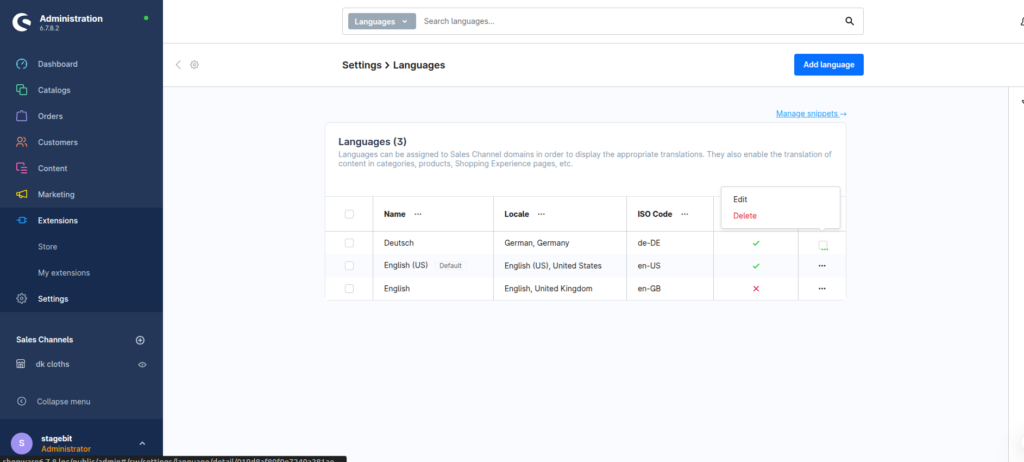
- Go to Settings → Languages and edit each language
- Confirm the Locale field uses BCP 47 format:
en-GB,de-DE,fr-FR,nl-NL - For region-neutral tags (e.g. Spanish for all Spanish speakers) use
esnotes-ES
Install and configure SwagLanguagePack
Shopware’s official SwagLanguagePack plugin (free, available in the Shopware Store) adds hreflang tag output to the Storefront automatically once configured. It reads your active sales channels, matches them by language locale, and injects the correct <link rel="alternate" hreflang="..."> tags into the page head. This is the fastest route for most stores.
- Install
SwagLanguagePackvia the Shopware plugin manager orcomposer require swag/language-pack - Activate the plugin and run
bin/console plugin:install --activate SwagLanguagePackif deploying via CLI - Verify hreflang tags appear in your page source by checking the
<head>of any product page - Confirm the plugin generates one tag per active sales channel plus an
x-defaulttag pointing to your primary channel
Implement hreflang manually via theme override
If you’re not using SwagLanguagePack—or if you need more control over which channels are included—you can inject hreflang tags directly in your custom theme. Override layout/meta.html.twig and loop through the available sales channel domains to build the tag set. This gives you full control but requires keeping the template in sync when you add new channels.
{# In layout/meta.html.twig #}
{% block layout_head_hreflang %}
  {% for hreflang in page.metaInformation.hrefLangs ?? [] %}

  {% endfor %}
  {# x-default — point to your primary/English channel #}

{% endblock %}true as the third argument to sw_path() to force absolute URL generation—without it you’ll get relative paths in your hreflang tags, which are invalid.
Configure x-default correctly
The x-default hreflang tag tells Google which URL to show users whose language or region isn’t matched by any of your other tags. Most stores point it at their English channel or their primary market. It’s not optional—without it, Google has to guess which version to show unmatched users, and it usually guesses wrong (this catches most people off guard).
- Decide which sales channel is your “fallback”—usually your English or primary-market channel
- Add
<link rel="alternate" hreflang="x-default" href="[primary channel URL]">to every page across all language variants - The
x-defaultURL must also appear as a standard hreflang tag for its own locale—don’t include x-default without also including e.g.hreflang="en"
x-default at a language-selection landing page that doesn’t exist in your sitemap—Google will crawl it, find no content, and may demote all your language variants.
Confirm reciprocal tags across all channels
Every language version of a page must reference all other language versions—including itself. If your German page lists hreflang tags for DE and EN but your English page only lists EN, Google treats the whole set as broken and ignores it. This is the most common reason hreflang setups don’t work despite appearing technically correct.
- Open the same product page on each of your language channels and check the
<head>source - Confirm every page lists identical hreflang tags pointing to all language variants plus x-default
- Use Screaming Frog’s hreflang tab or Ahrefs Site Audit to validate reciprocal linking at scale across your full catalogue
- Submit separate sitemaps per sales channel to Google Search Console—this gives you per-channel crawl and indexing data
Shopware Hreflang Setup Checklist
0 of 12 completeStructure
Implementation
Validation
Mistakes Most Developers Make
! Non-reciprocal hreflang across channels
What happens: Google sees an inconsistent signal and ignores the entire hreflang set—your language variants end up competing against each other in search results.
Fix: Every language variant of a page must list hreflang tags for all other variants including itself—audit this with Screaming Frog’s hreflang tab before launch.
! Using relative URLs in hreflang attributes
What happens: Relative paths in hreflang tags are technically invalid per Google’s spec and will be silently ignored—you won’t see an error, just no hreflang benefit.
Fix:
Always use absolute URLs including the protocol and domain, and pass true to sw_path() in Twig templates to force absolute URL generation.
! Wrong or missing locale codes on languages
What happens:
A locale set to de instead of de-DE, or english instead of en-GB, produces an invalid hreflang value that Google rejects without warning.
Fix: Edit each language in Settings → Languages and confirm the locale field matches BCP 47 format exactly before activating any hreflang output.
! Omitting x-default from all channel pages
What happens: Users from unmatched regions (e.g. Canada visiting a DE/EN store) get served an arbitrary language version, which increases bounce rate and confuses Google’s understanding of your intended audience.
Fix:
Add a single consistent x-default tag on every page across every language channel, pointing to your primary market URL.
Key Takeaway
The short version: Shopware doesn’t output hreflang tags natively—you need SwagLanguagePack or a theme override, and your sales channel structure has to be right first or no plugin will fix it. The two things that silently break hreflang most often are non-reciprocal tags (each channel not listing all others) and missing or malformed locale codes on your Shopware language records. Get those right and the rest is implementation detail. Start with Step 1—if your sales channel structure is wrong, every subsequent step is building on sand.
Related Answers

Still need help?
Talk to our Shopware experts
We've handled GDPR/CCPA compliance for dozens of EU & US Shopware stores.