How to handle pre‑orders and back‑in‑stock alerts natively?
Quick Answer
Shopware can handle back-in-stock notifications natively through product subscriptions, and you can support basic pre-orders using stock, availability, and delivery time settings. The tricky part is making sure overselling rules, email flows, and storefront messaging all work together. Here’s how to configure both properly without relying on a heavy third-party extension stack.
Before You Start
- ✦ Transactional email setup — back-in-stock alerts depend on working mail delivery.
- ✦ Delivery times configured — pre-order messaging is unclear without estimated availability.
- ✦ Access to theme or CMS editing — most stores need small storefront wording adjustments.
Enable stock subscriptions
Shopware includes native product subscriptions for out-of-stock items. Once enabled, customers can register for notifications directly from the product page when inventory hits zero. Most stores skip testing the actual email workflow and only verify the storefront button. That usually becomes a problem after launch when queued emails never send.
- Enable product subscriptions for unavailable products
- Verify your mailer and queue worker are active
- Test the workflow using a real customer email
Configure pre-order inventory rules
Native pre-orders in Shopware are usually handled by allowing orders below available stock. You do this by enabling the “Closeout” setting carefully and defining a negative stock threshold. This works well for limited pre-order campaigns or incoming replenishment windows. But you need operational discipline behind it. Otherwise customers can purchase products that suppliers cannot actually deliver.
- Enable stock management on the product
- Set a negative stock limit for overselling
- Add realistic inbound delivery dates internally
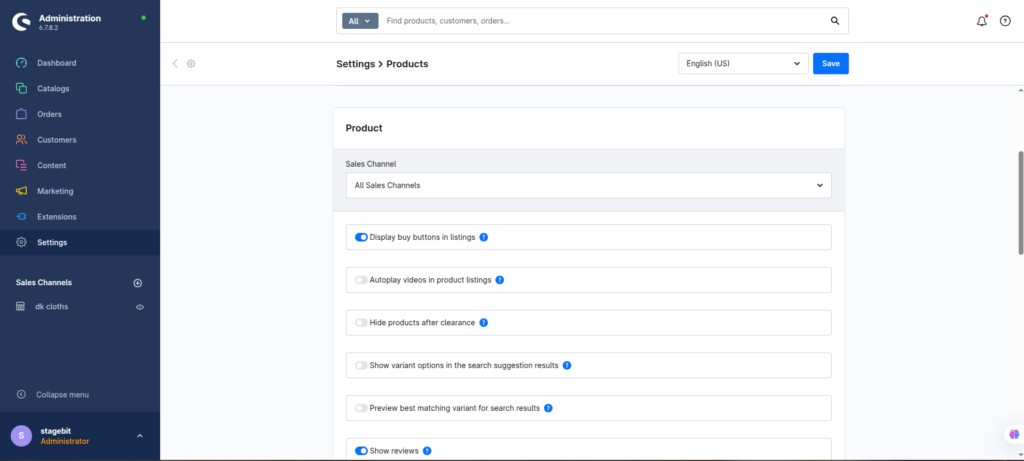
Add storefront pre-order messaging
Customers need clear communication before checkout. Shopware’s default stock messaging is functional, but it rarely explains whether an item is shipping immediately, back-ordered, or available for pre-order. Most serious stores customise the product detail template or CMS block to display estimated dispatch windows and expected availability dates.
- Show estimated shipping or restock timing
- Differentiate pre-order from low stock messaging
- Update email templates with the same wording
Automate stock return notifications
Native subscriptions become much more useful once Flow Builder is involved. You can trigger customer notifications, internal alerts, or tagging workflows when inventory changes. This is especially useful for high-demand products where stock disappears quickly after replenishment.
- Create flows for stock increase events
- Notify support teams when stock returns
- Tag products with temporary campaign labels
Test edge-case ordering scenarios
This is the step most merchants rush through. You need to test mixed carts, partial stock, cancelled orders, refunds, and ERP sync timing. Native Shopware handling works well for simple inventory logic, but complex fulfilment operations expose gaps quickly. Especially if you ship from multiple warehouses or sync inventory externally.
- Place test orders with negative stock products
- Validate ERP and warehouse sync behaviour
- Confirm notification emails send only once
Shopware Pre-Order Checklist
0 of 7 completeMistakes Most Developers Make
! Unlimited overselling enabled
What happens: Customers buy products far beyond incoming supplier quantities.
Fix: Set realistic negative stock limits per SKU instead of global overselling.
! Queue workers never monitored
What happens: Back-in-stock alerts silently stop sending after deployment or cron failures.
Fix: Monitor scheduled tasks and queue processing in staging and production.
! Vague delivery messaging shown
What happens: Customers assume products ship immediately and open support disputes later.
Fix: Show estimated dispatch timing directly beside the add-to-cart area.
! ERP sync timing ignored
What happens: Temporary inventory updates trigger false stock notifications.
Fix: Add timing buffers or delayed flows before customer emails fire.
Key Takeaway
The short version: Shopware already gives you the building blocks for pre-orders and back-in-stock alerts without needing a large extension stack. The real work is around inventory discipline, customer messaging, and queue reliability. Keep overselling limits controlled, make delivery timing obvious, and test notification behaviour under real ordering conditions. Most failed setups come from operational gaps rather than missing features. Start with Step 2—that one alone handles most of it.
Related Answers

Still need help?
Talk to our Shopware experts
We've handled GDPR/CCPA compliance for dozens of EU & US Shopware stores.