How to optimize images, fonts, and JS for Shopware 6 performance?
Quick Answer
Shopware 6 performance problems usually come from three places: oversized product images, unoptimized frontend assets, and third-party plugins loading too much JavaScript. The fastest wins normally come from converting images to WebP, reducing unused JS bundles, and self-hosting only the font weights you actually use. The steps below cover the exact setup changes we use during Shopware performance audits and launch hardening.
Before You Start
- ✦ Staging environment — performance tuning can break layouts or third-party scripts if tested directly on production.
- ✦ SSH or deployment access — you’ll need this for theme compilation, cache warm-up, and asset rebuilds.
- ✦ Performance benchmark — run Lighthouse or PageSpeed Insights before changing anything so you can measure actual gains.
Optimize product images
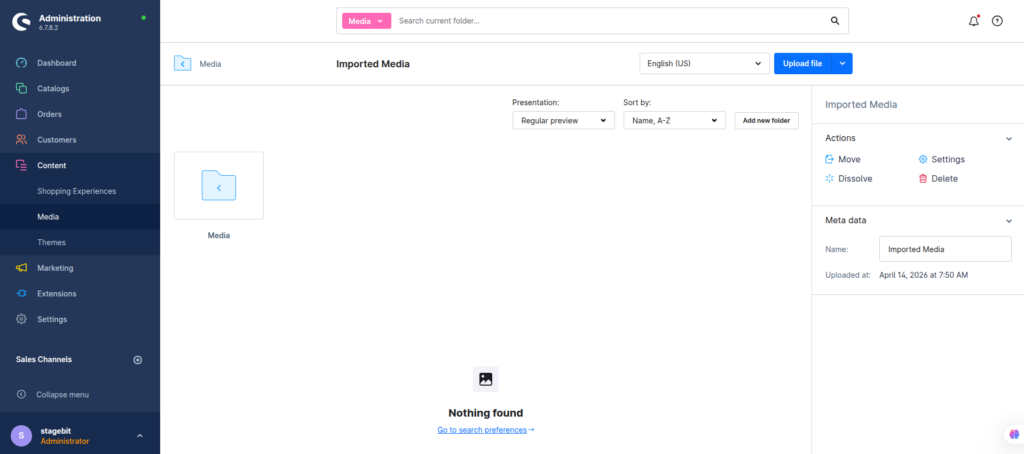
Large product images are usually the biggest performance issue in Shopware stores. We still see stores uploading five to 10 MB PNG files directly from photographers. Convert catalog images to WebP wherever possible and generate multiple thumbnail sizes instead of serving full-resolution originals to mobile devices. Shopware handles responsive thumbnails well—but only if the media setup is configured correctly.
- Enable automatic thumbnail generation
- Upload WebP or AVIF images where supported
- Reduce oversized banner dimensions before upload
Configure lazy loading
Shopware supports lazy loading in the storefront, but many custom themes accidentally disable it by overriding Twig templates incorrectly. Your goal is simple: only load images when users scroll near them. This reduces initial payload size and improves Largest Contentful Paint scores. Be careful with above-the-fold images though. Those should load immediately.
- Keep hero and primary product images eager-loaded
- Apply lazy loading to gallery and CMS images
- Test mobile category pages after deployment
Reduce font payloads
Custom fonts are a silent performance killer in many Shopware themes. We regularly audit stores loading six or seven font weights across multiple families. Most storefronts only need two weights for body text and headings. Self-host fonts locally instead of calling external providers where possible. This improves both speed and privacy compliance.
- Keep only required font weights
- Serve WOFF2 font formats
- Use font-display swap in CSS
Trim unnecessary JavaScript
Third-party plugins are the biggest JavaScript problem in Shopware 6. Live chat widgets, tracking tools, sliders, reviews, and marketing apps often inject blocking scripts into every page. Audit every installed plugin and remove anything that is not directly affecting revenue. One unused plugin can add hundreds of kilobytes of JS and several extra network requests.
- Disable unused storefront plugins
- Load scripts only where needed
- Delay analytics scripts until interaction
Compile and cache assets
Performance fixes do not fully apply until Shopware recompiles storefront assets and clears stale caches. We often see developers optimize theme files but forget to rebuild production assets afterward. That leaves old JS and CSS bundles still being served. Always deploy optimizations together with cache warm-up and CDN cache invalidation.
- Run production storefront build commands
- Clear and warm Shopware cache
- Purge CDN and browser caches after deployment
bin/console cache:clear

bin/console theme:compile
bin/build-storefront.sh
Shopware Performance Checklist
0 of 8 completeMistakes Most Developers Make
! Serving original images everywhere
What happens: Mobile users download multi-megabyte images that should have been resized server-side.
Fix: Generate responsive thumbnails and serve modern formats like WebP or AVIF.
! Loading every plugin globally
What happens: Storefront pages become JS-heavy and interaction delays increase noticeably on mobile.
Fix: Conditionally load scripts only on pages where features are actually used.
! Using too many font weights
What happens: Browsers download unnecessary font files before rendering text content.
Fix: Limit storefront typography to essential weights and self-host optimized WOFF2 files.
! Skipping asset recompilation
What happens: Production storefronts keep serving old JS and CSS bundles even after changes are deployed.
Fix: Recompile themes, clear caches, and purge CDN layers after every frontend optimization release.
Key Takeaway
The short version: most Shopware 6 speed issues come from oversized media files and frontend bloat added over time. Optimize images first, then reduce unnecessary fonts and plugin JavaScript before touching advanced infrastructure tuning. Stores usually gain the biggest Core Web Vitals improvements from trimming payload size rather than upgrading servers. And always recompile assets and warm caches after deployment or your changes may not appear correctly. Start with Step 1—that one alone handles most of it.
Related Answers

Still need help?
Talk to our Shopware experts
We've handled GDPR/CCPA compliance for dozens of EU & US Shopware stores.