How to restrict payment/shipping methods by customer group rules?
Quick Answer
You can restrict both payment methods and shipping methods in Shopware by using Rule Builder conditions tied to customer groups. This is the standard way to create B2B-only payment terms, wholesale shipping options, or region-specific checkout flows without custom code. The setup usually takes under an hour, but most stores get the rule priority logic wrong the first time. This guide covers the full setup, testing flow, and the mistakes that cause methods to disappear unexpectedly at checkout.
Before You Start
- ✦ Customer groups already configured — your rules can only target groups that already exist in Shopware
- ✦ Shipping and payment methods created — configure the methods first before attaching availability rules
- ✦ Admin access with settings permissions — Rule Builder and checkout settings are restricted in most production stores
Create customer group rules
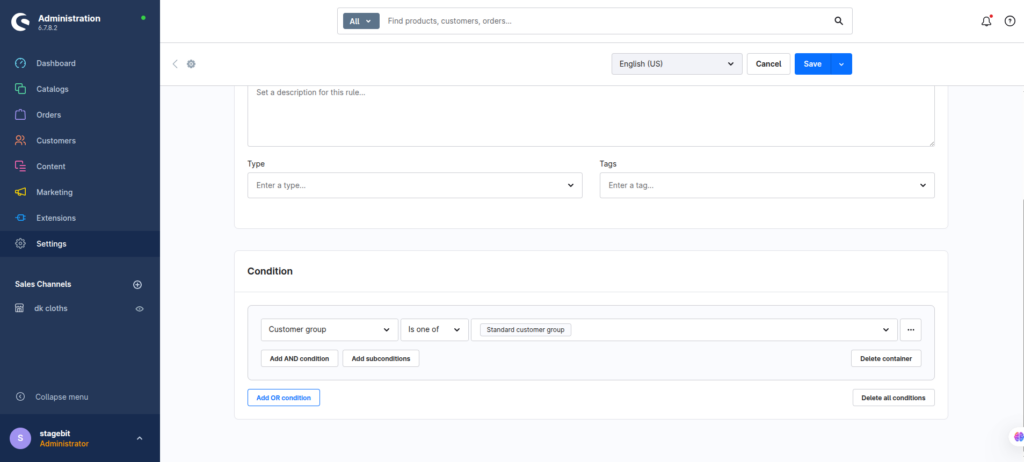
Start by creating dedicated rules for each customer group you want to target. In most projects, that means separate rules for Retail, Wholesale, VIP, or B2B customers. Keeping these rules isolated makes checkout debugging much easier later. Avoid building one giant combined rule unless you absolutely need it. Rule Builder becomes hard to maintain once multiple conditions stack together.
- Click “Create Rule” and give it a clear business name
- Select the condition “Customer customer group”
- Choose the target customer group for the rule
Assign rules to payment methods
Open each payment method and use the availability rule selector to control who can see it at checkout. This is where most B2B stores hide invoice payments from guest users or expose purchase orders only to approved accounts. Shopware evaluates these rules in real time during checkout, so customers only see methods that match their group and cart conditions.
- Edit the target payment method
- Select the customer group rule in “Availability Rule”
- Save and repeat for each payment option
Restrict shipping methods
Shipping methods work the same way as payment methods. You attach availability rules directly to the shipping configuration. This setup is common for wholesale stores that offer pallet freight only to B2B accounts while retail customers see parcel delivery instead. And yes, you can combine customer group logic with country, cart value, or weight conditions inside the same rule.
- Edit the shipping method you want to limit
- Select the matching availability rule
- Test the method with a customer account from that group
Test every checkout scenario
Before pushing this live, test every combination that matters to your business. That includes guest checkout, logged-in retail customers, B2B accounts, and edge cases like mixed carts or alternate delivery addresses. Checkout rules can overlap in unexpected ways once promotions, tax rules, and shipping conditions start interacting together.
- Create test users for each customer group
- Verify both shipping and payment visibility
- Check checkout behavior on storefront and API channels
Shopware Checkout Restriction Checklist
0 of 6 completeMistakes Most Developers Make
! Using one giant rule
What happens: Checkout logic becomes almost impossible to debug six months later.
Fix: Create smaller reusable rules and combine them only where needed.
! Forgetting fallback payment methods
What happens: Customers hit checkout with no visible payment options and abandon the cart.
Fix: Keep at least one safe default method available during rollout and testing.
! Ignoring sales channel scope
What happens: Rules work in staging but fail in specific storefronts or API channels.
Fix: Verify that every shipping and payment method is assigned to the correct sales channel.
Key Takeaway
The short version: Shopware already includes everything you need to restrict payment and shipping methods by customer group through Rule Builder. The setup itself is simple, but the real work is naming rules properly, avoiding overlapping logic, and testing every checkout path before launch. Most checkout issues happen because stores forget fallback methods or ignore sales channel assignments. Keep your rules modular and easy to audit later. Start with Step 1—that one alone handles most of it.
Related Answers

Still need help?
Talk to our Shopware experts
We've handled GDPR/CCPA compliance for dozens of EU & US Shopware stores.