How to set up SEO‑friendly URLs and canonical tags in Shopware 6?
Quick Answer
Shopware 6 generates SEO URLs automatically from your product and category names, but you need to configure the SEO URL templates and canonical settings manually to get clean, duplicate-free URLs. The defaults work for simple stores—but pagination, sales channels, and filter parameters will create duplicate content issues if you don’t address them. This page covers the full setup from URL templates through to canonical tag configuration.
Before You Start
- ✦Admin access with System > Settings permissions — you’ll need to edit SEO URL templates and sales channel settings.
- ✦URL slugs already set on products and categories — Shopware builds SEO URLs from these, so empty or auto-generated slugs will produce ugly paths.
- ✦Scheduled task runner active — SEO URL regeneration runs as a background task; if the scheduler isn’t running, URL changes won’t propagate.
Configure SEO URL templates
Shopware uses Twig-style templates to build URLs for products, categories, and landing pages. The default product template is {{ product.translated.name }}/{{ product.productNumber }}—which works but includes the product number, which most stores don’t want in the URL.
- Go to Settings → SEO and select your sales channel from the dropdown
- Update the product URL template to
{{ product.translated.name }}for clean slug-only URLs - Update the category template to
{{ category.translated.name }}or include the parent path with{{ breadcrumb | join('/') }} - Save and trigger a URL regeneration via Maintenance → SEO URL Indexer
Set product and category slugs correctly
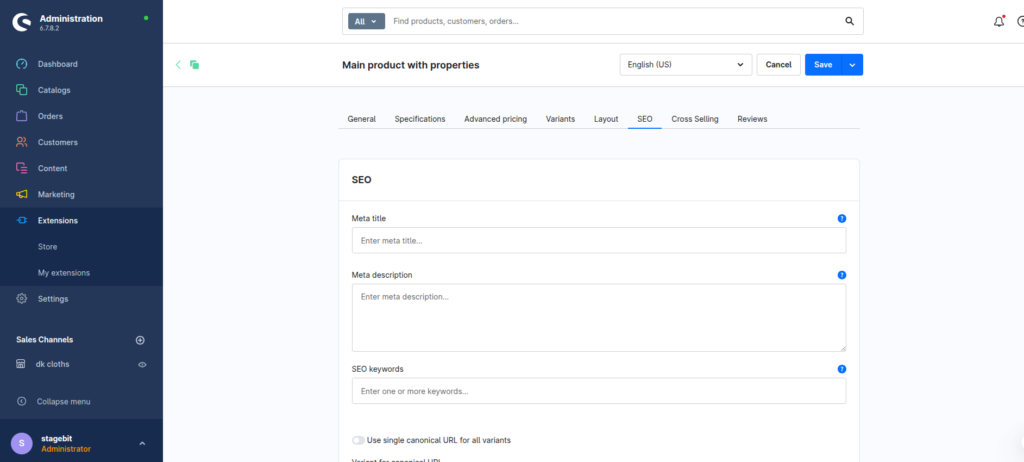
Each product and category has an SEO URL field on its detail page. If you leave it blank, Shopware auto-generates from the name—including spaces converted to hyphens and special characters stripped. You can override this per-product to set an exact slug. This is the right place to fix individual URLs without changing the global template.
- Open any product, switch to the SEO tab, and set the SEO URL field to your preferred slug
- Use lowercase, hyphen-separated words only—no trailing slashes, no query strings
- For bulk updates, use the Import/Export module with a CSV containing the
seoUrls.urlfield
Handle sales channel URL prefixes
If you run multiple sales channels (e.g. separate EN and DE storefronts), each channel has its own domain and URL base. Shopware stores SEO URLs per sales channel—so the same product can have /en/red-shoes on one channel and /de/rote-schuhe on another. This is correct behaviour, but you need to ensure your hreflang tags are also set up if you’re running multilingual channels.
- Check each sales channel has a clean domain set under Domains—no trailing slashes
- Confirm the Base URL field is empty unless you’re running Shopware in a subdirectory
- For multilingual stores, install the
SwagLanguagePackor equivalent to gethreflangoutput in the Storefront
Configure canonical tags in the Storefront
Shopware’s Storefront theme outputs a <link rel="canonical"> tag automatically on product and category pages. By default it points to the primary SEO URL for the current sales channel. The problem is filter parameters—URLs like /shoes?color=red don’t get a canonical by default, which means every filtered view is a potential duplicate.
- Verify the canonical is rendering in your page source: look for
<link rel="canonical" href="...">in the<head> - For filtered listing pages, override
layout/meta.html.twigin your custom theme to force the canonical to the unfiltered category URL - For products in multiple categories, confirm the canonical points to the product’s primary SEO URL, not the category-prefixed variant
{# In layout/meta.html.twig — force canonical on filtered pages #}
{% block layout_head_canonical %}
  {% set canonicalUrl = page.metaInformation.canonical ?? sw_path(navigationId) %}

{% endblock %}Handle pagination canonical tags
Shopware appends ?p=2, ?p=3 etc. for paginated category pages. These are indexable by default and will show up as near-duplicate pages in Google Search Console if you don’t handle them. The standard approach is to self-canonical each paginated page to itself—not back to page one—which tells Google each page is intentional and distinct.
- Check whether your theme’s canonical tag includes or strips the
?p=parameter by inspecting page two of any category - If the canonical strips the parameter (pointing all pages to page one), override the template to include
?p={{ page.listing.page }}for pages two and above - Do not use
noindexon paginated pages unless the category has very thin content per page—you’ll lose rankings for long-tail terms that only appear on page three or four
rel="next" and rel="prev" pagination hints in 2019—self-canonicals per page are the right approach now, not link rel pagination.
Regenerate and verify SEO URLs
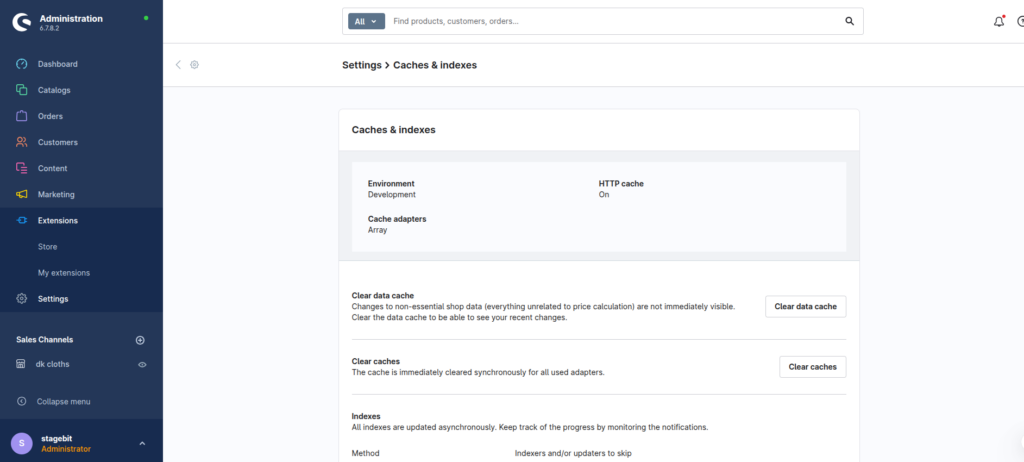
After changing any URL template or slug, you need to rebuild the SEO URL index. You can do this from the admin UI or via CLI. The CLI route is faster for large catalogues and gives you a progress indicator.
- From admin: go to Settings → System → Caches & Indexes and run SEO URL Indexer
- Via CLI: run
bin/console dal:refresh:index --only=Shopware\Core\Content\Seo\SeoUrlIndexer - Spot-check five to ten products by visiting their URLs and confirming the canonical in the page source matches the expected slug
- Submit an updated sitemap to Google Search Console after regeneration
Shopware SEO URL & Canonical Checklist
0 of 11 completeURL Setup
Canonical Tags
Verification
Mistakes Most Developers Make
! Changing URL templates on a live store
What happens: All existing URLs are replaced immediately after the indexer runs, producing mass 404s for any pages Google has already indexed—rankings drop within days.
Fix: Export your current SEO URL table before changing the template, generate the new URLs in staging, then configure 301 redirects from old to new before deploying to production.
! Ignoring filter parameters as duplicate URLs
What happens: Every filter combination creates a crawlable URL with near-identical content—a store with 20 filter options can generate thousands of duplicate pages that dilute crawl budget.
Fix: Override the canonical tag template in your theme to always point filtered listing URLs back to the clean category URL without query parameters.
! Not configuring SEO URLs per sales channel
What happens: URL templates set at the global level get inherited by all sales channels, so a German storefront ends up with English slugs if you don’t override the template per channel.
Fix: Always select the specific sales channel from the dropdown in Settings → SEO before saving URL templates—never rely on the global default for multi-channel setups.
! Forgetting to run the SEO URL indexer after changes
What happens: The old URLs remain active and the store serves both old and new paths, causing split indexing with no canonical to resolve which is correct.
Fix: Run the indexer immediately after any template or slug change, and add it to your deployment checklist so it never gets skipped.
Key Takeaway
The short version: Shopware’s SEO URL system is solid out of the box, but three things will silently create duplicate content issues if you don’t address them—filter parameters on listing pages, products assigned to multiple categories, and paginated pages without proper self-canonicals. The canonical tag outputs automatically, but it doesn’t account for query strings by default. Start with Step 1—getting your URL templates right before you index any content is the one thing that saves the most cleanup work later.
Related Answers

Still need help?
Talk to our Shopware experts
We've handled GDPR/CCPA compliance for dozens of EU & US Shopware stores.