How to create custom price lists and tier pricing for B2B customers?
Quick Answer
Shopware lets you create customer-specific price lists and tier pricing rules using customer groups, advanced prices, Rule Builder, and optionally the B2B Suite. Most stores handle this with a mix of dynamic pricing rules and customer segmentation instead of hardcoded custom logic. The setup matters because one wrong rule priority can expose wholesale pricing to retail customers or stack discounts incorrectly. Below is the cleanest setup we use for B2B stores with multiple buyer groups, quantity breaks, and negotiated pricing.
Before You Start
- ✦ A defined B2B pricing structure — Decide upfront whether pricing is based on customer groups, individual accounts, order volume, or contract pricing.
- ✦ Shopware Rule Builder access — Most pricing automation depends on rules, not static product pricing.
- ✦ Separate customer groups — Retail and wholesale customers should never share the same pricing logic.
Create customer groups
Start by separating your B2B customers into logical pricing groups. Most stores create groups like Wholesale, Distributor, VIP Dealer, or Regional Reseller. This becomes the foundation for every pricing rule later. Don’t skip this and try to manage pricing per customer from day one—that gets messy fast once you pass a few hundred SKUs.
- Create separate groups for each pricing model
- Assign tax display settings per group if needed
- Map existing B2B accounts into the right group
Configure advanced prices
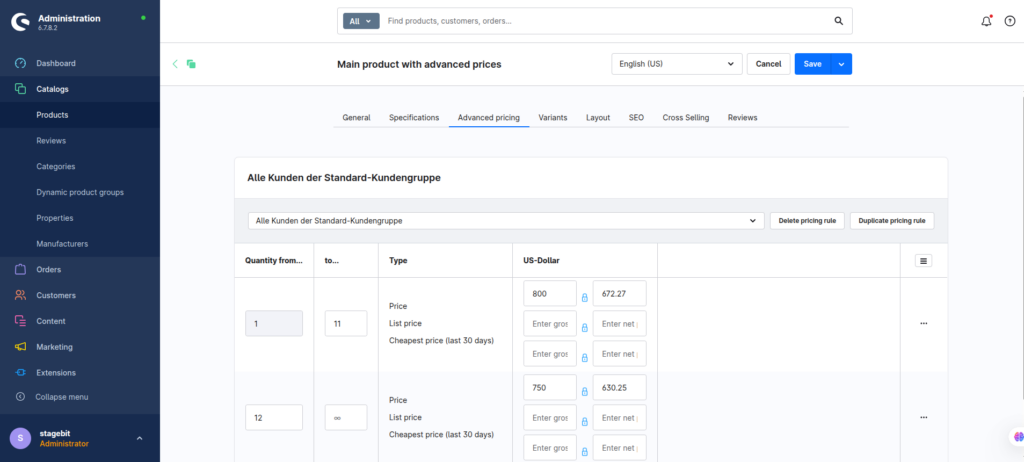
Advanced Prices are where Shopware handles customer-specific pricing and quantity breaks. You can assign a fixed price to a customer group and define price tiers based on quantity. For example, one price for one to nine units, another for 10+, and another for 50+. This works well for most B2B catalogues without custom development.
- Open a product and go to Advanced Prices
- Select the target customer group
- Add quantity-based pricing tiers
Build pricing rules
Rule Builder is where Shopware becomes powerful for B2B pricing. You can create rules based on customer groups, countries, order values, shipping regions, or even custom fields. We usually recommend keeping pricing logic inside Rule Builder instead of adding custom plugin code unless the pricing model is truly unusual.
- Create rules for customer segments
- Add conditions for order value or quantity
- Apply rules to pricing and promotions carefully
Handle negotiated pricing
Some B2B stores need customer-specific contracts instead of shared price lists. In that case, use Shopware B2B Components or a custom pricing extension tied to customer accounts. This is common for manufacturers, distributors, and ERP-driven catalogues where each buyer has negotiated margins.
- Create account-specific pricing conditions
- Sync prices from ERP or PIM if needed
- Limit admin access to pricing editors
Test every pricing scenario
Pricing bugs usually appear after launch when different rules overlap. Test every customer group with multiple quantities, currencies, and tax combinations. Also check promotions, because discounts can accidentally stack on top of wholesale pricing if priorities are wrong.
- Create test users for each customer type
- Verify quantity break calculations
- Check cart totals with promotions enabled
Shopware B2B Pricing Checklist
0 of 6 completeMistakes Most Developers Make
! Mixing discounts with price lists
What happens: Wholesale users receive double discounts at checkout.
Fix: Separate negotiated pricing from promotional campaigns using Rule Builder priorities.
! Overusing customer-specific prices
What happens: Pricing maintenance becomes impossible once the catalogue grows.
Fix: Use customer groups wherever possible and reserve account-level pricing for negotiated contracts only.
! Ignoring tax display differences
What happens: B2B buyers see incorrect gross pricing or VAT totals.
Fix: Configure customer groups with the correct tax display and validate checkout totals using test accounts.
Key Takeaway
The short version: Shopware handles B2B price lists best when you combine customer groups, Advanced Prices, and Rule Builder instead of relying on custom-coded discounts. Quantity tiers should live at the product pricing level, while customer segmentation should live inside Rule Builder. Most pricing problems come from overlapping rules, stacked promotions, or poor customer group structure. Test every pricing scenario with real customer accounts before launch. Start with Step 1—that one alone handles most of it.
Related Answers

Still need help?
Talk to our Shopware experts
We've handled GDPR/CCPA compliance for dozens of EU & US Shopware stores.