How do I edit the homepage layout and sections in Shopify?
Editing your Shopify homepage layout means changing how your store looks by moving, adding, or removing sections like banners, collections, text blocks, and buttons. You can fully customize your homepage using Shopify’s built-in theme editor — no coding needed.
Step 1 – Open your homepage in the theme editor
Go to your Shopify admin → Online Store > Themes. Click Edit theme on your current theme. Your homepage opens by default.
Step 2 – Understand sections and blocks
Your homepage is made of sections (big layout parts like banners, sliders, collections) and blocks (small elements like text, buttons, images).
You can move sections, edit their content, and rearrange blocks inside each section to design your layout exactly how you want.
Step 3 – Add a new section
In the left panel, click Add section. Choose a layout like Image banner, Featured collection, Slideshow, Video, Testimonials, or Rich text.
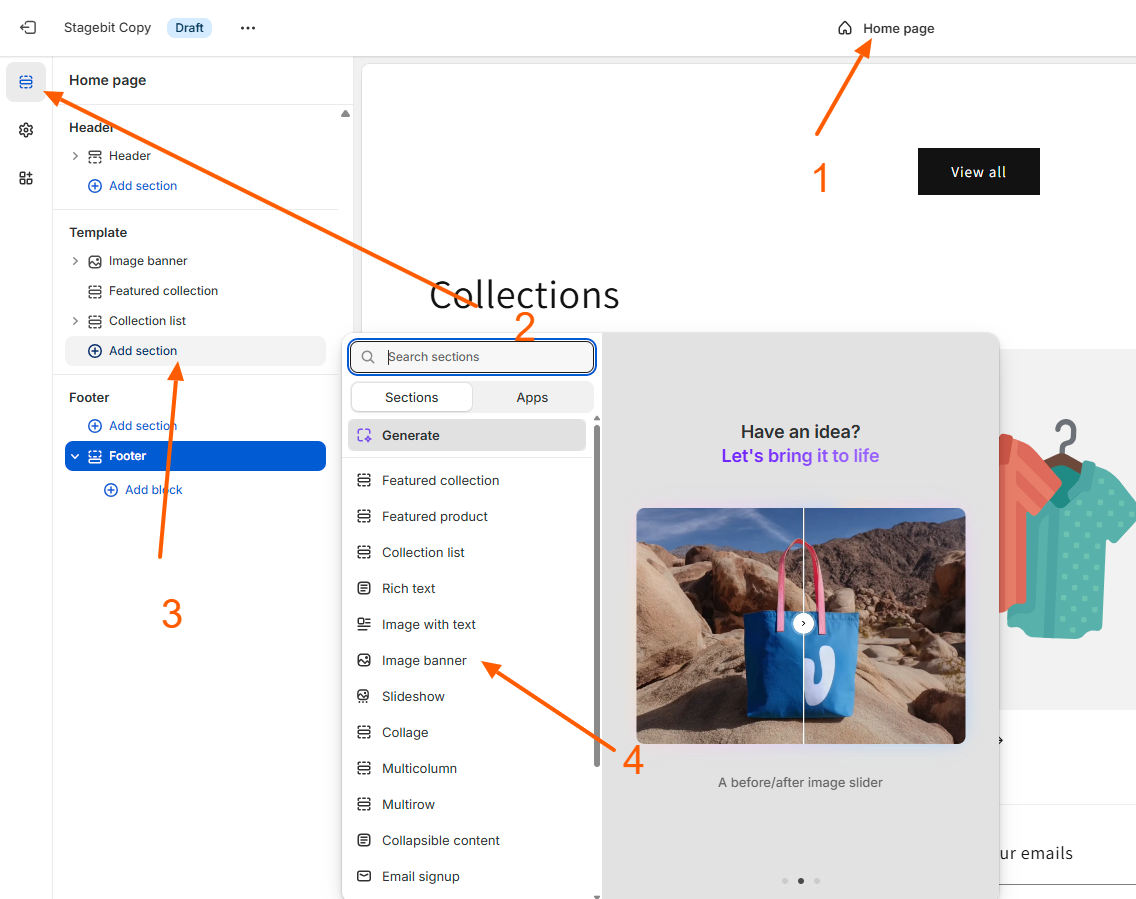
Step 4 – Edit section content
Click on any section on the page that you want to edit.
All editing options will open on the right-side panel of your screen.
From here, you can change the text, upload or replace images, update button links, adjust background colors, and choose layout styles.
Every change you make is instantly shown in the live preview, so you can see how your homepage looks before saving.
Step 5 – Rearrange your layout
Hover over any section, then drag it up or down to change the order on your homepage.
Step 6 – Add or edit blocks inside sections
Open a section and click Add block to insert text, buttons, images, icons, videos, and app elements.
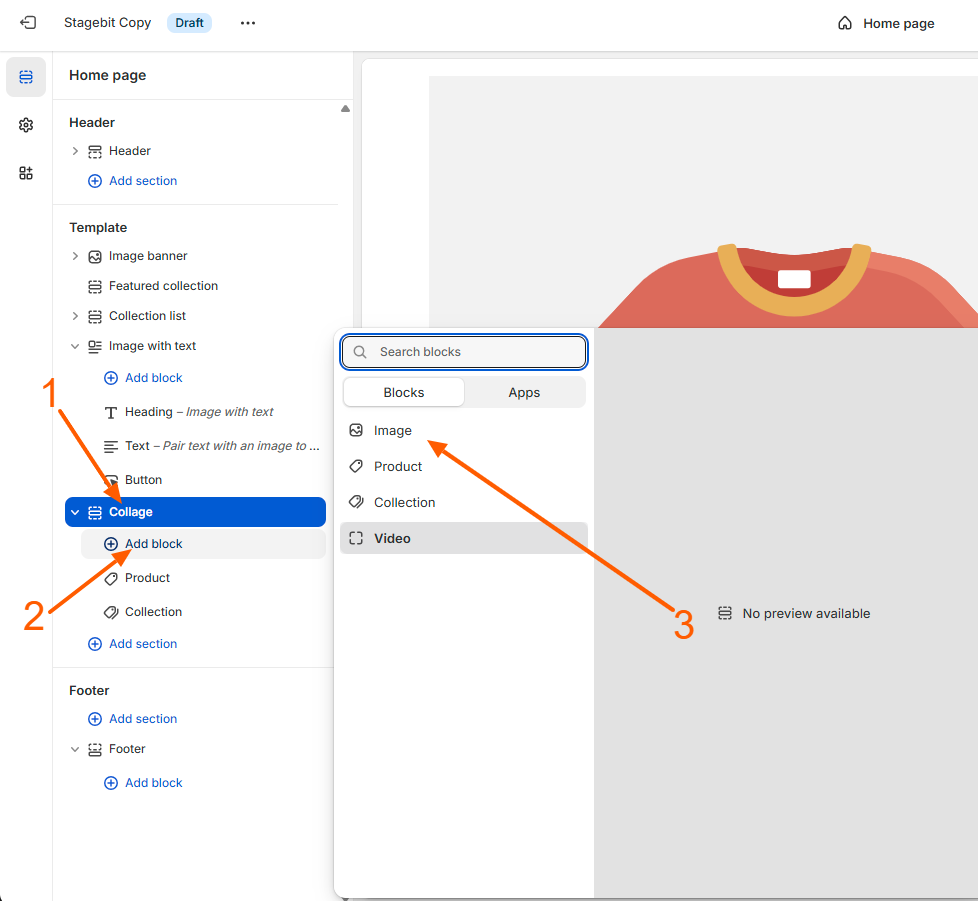
Step 7 – Hide or delete sections
Use the eye icon to temporarily hide a section. Use the trash icon to permanently remove it.
Step 8 – Save and preview
Click Save. Preview your homepage on mobile and desktop to make sure everything looks perfect.
Helpful tips
- You can add up to 25 sections per page.
- Each section can have up to 50 blocks.
- Use simple layouts for faster loading.
- Always preview before publishing.
With Shopify’s section-based editor, you can build a beautiful, high-converting homepage without touching any code.
Related Answers

Still need help?
Talk to our Shopify experts
We've handled GDPR/CCPA compliance for dozens of EU & US Shopify stores.