How do I add a slideshow or hero banner in Shopify?
A slideshow or hero banner is a great way to showcase your products, promotions, or brand visuals at the top of your Shopify store. You can add one without coding by using your theme’s built-in sections.
Step 1 – Open your theme editor
From your Shopify admin, go to Online Store → Themes. Next to your active theme, click Edit theme.
Step 2 – Choose the page for the banner
By default, your home page opens in the theme editor. If you want the slideshow on another page, click the page drop-down at the top and select the page or template where you want to add it.
Step 3 – Add a slideshow or hero section
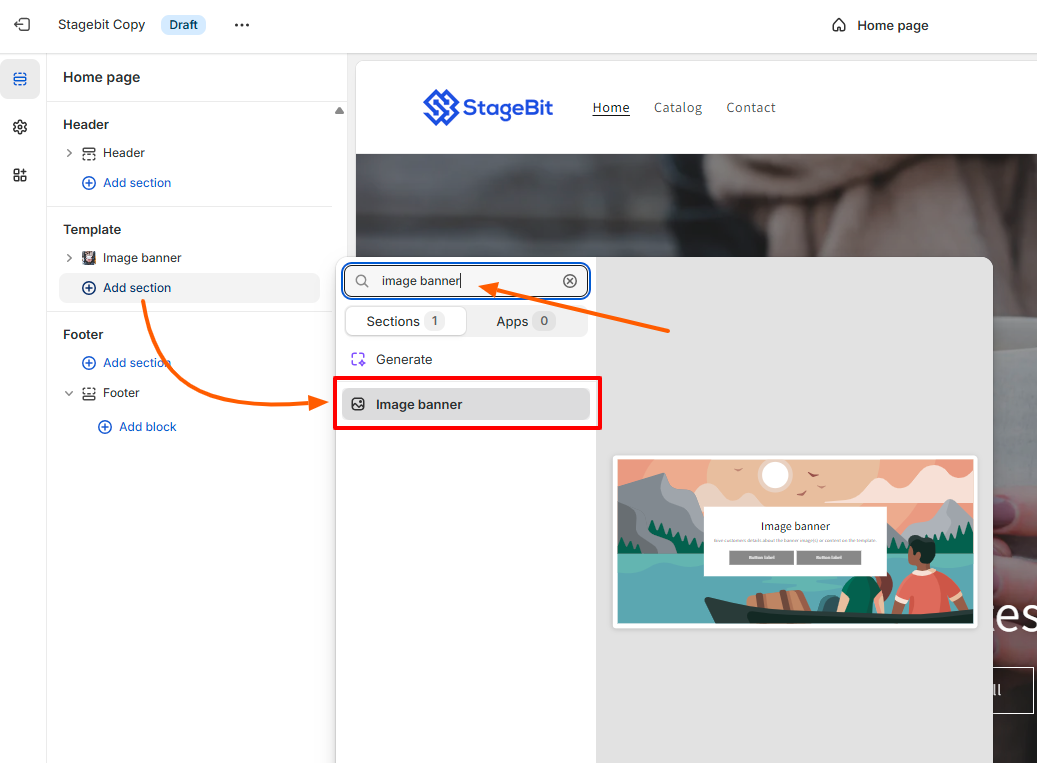
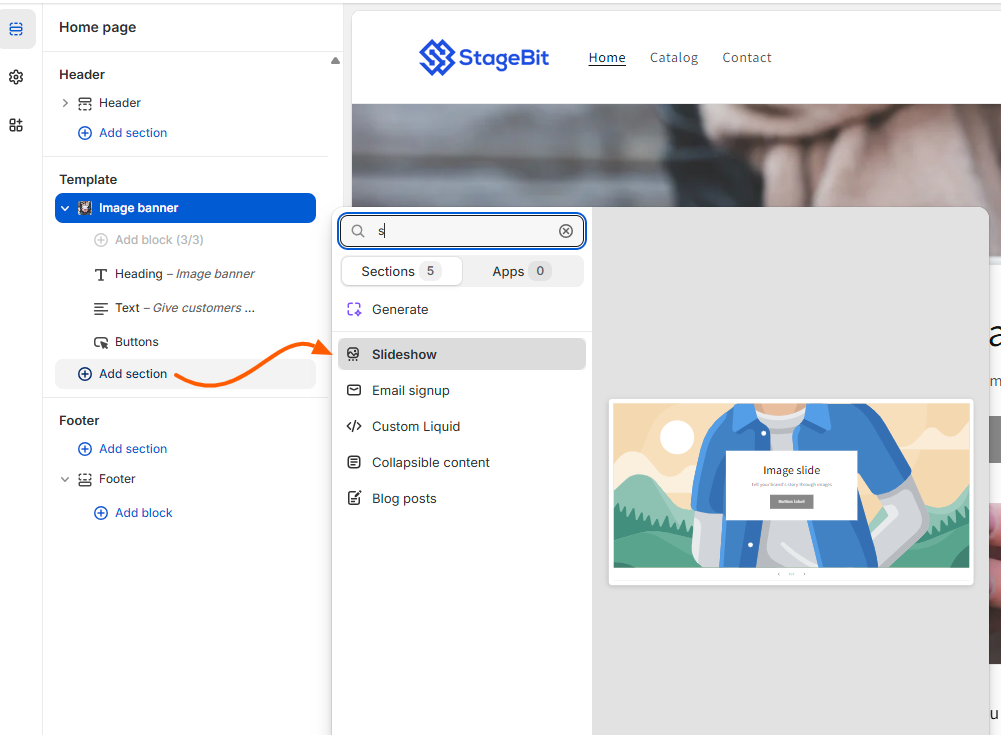
In the left sidebar, click + Add section. From the list, choose Slideshow or Image banner (depending on your theme). Click Add to insert it into your page.
Slide show
Step 4 – Upload images
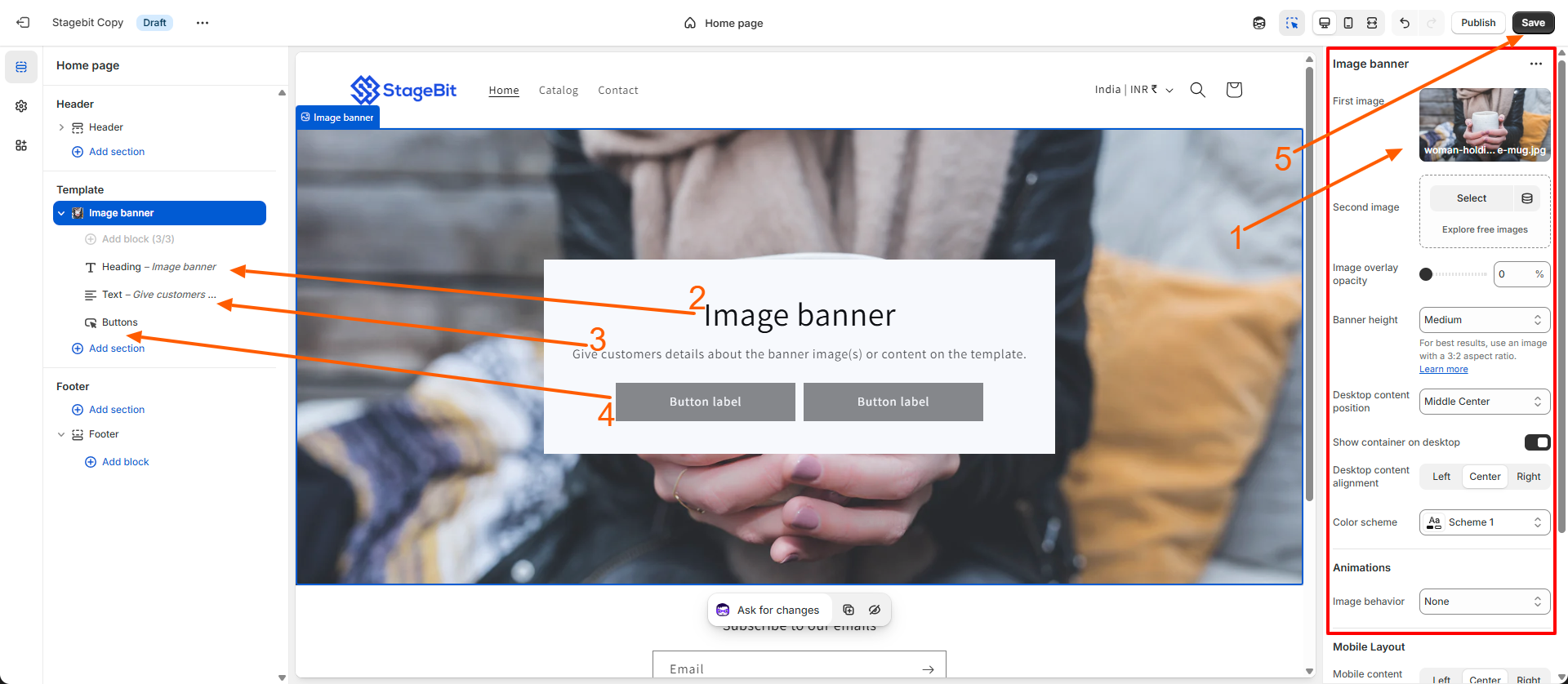
Click the section in the sidebar to open its settings on the right panel. Click Select image to upload images from your computer or choose from Shopify’s free stock images. Repeat to add multiple slides.
Step 5 – Set focal points and image layout
For each slide, set the focal point to control which part of the image is always visible. Adjust image alignment, crop, or resize settings if your theme allows it.
Step 6 – Add text, buttons, and links
You can add headlines, subheadings, call-to-action buttons, or links to each slide. Use the right-side settings panel to customize font, color, and placement for each element.
Step 7 – Configure slide settings
Set options such as slide duration, transition style, autoplay, or navigation arrows if available in your theme.
Step 8 – Rearrange slides
Drag and drop slides in the sidebar to change their order. This lets you control which slide appears first.
Step 9 – Preview and save
Use the device icons at the top to preview your slideshow on desktop and mobile. When everything looks good, click Save.
✅ Result: You now have a fully functional slideshow or hero banner that highlights your products, promotions, or key brand visuals at the top of your Shopify store.
Related Answers

Still need help?
Talk to our Shopify experts
We've handled GDPR/CCPA compliance for dozens of EU & US Shopify stores.